ComfyUI Flux ControlNet: depth and canny control in 2026
A ComfyUI Flux ControlNet workflow using the official Flux Tools depth and canny models, plus how to ship that structured control as an API.

One input photo. Three completely different outputs. Same pose every time. That is the promise of a ComfyUI Flux ControlNet setup, and the first time we wired one up it cost us an afternoon of confusion because the official Flux depth and canny models do not behave like the ControlNet you already know.
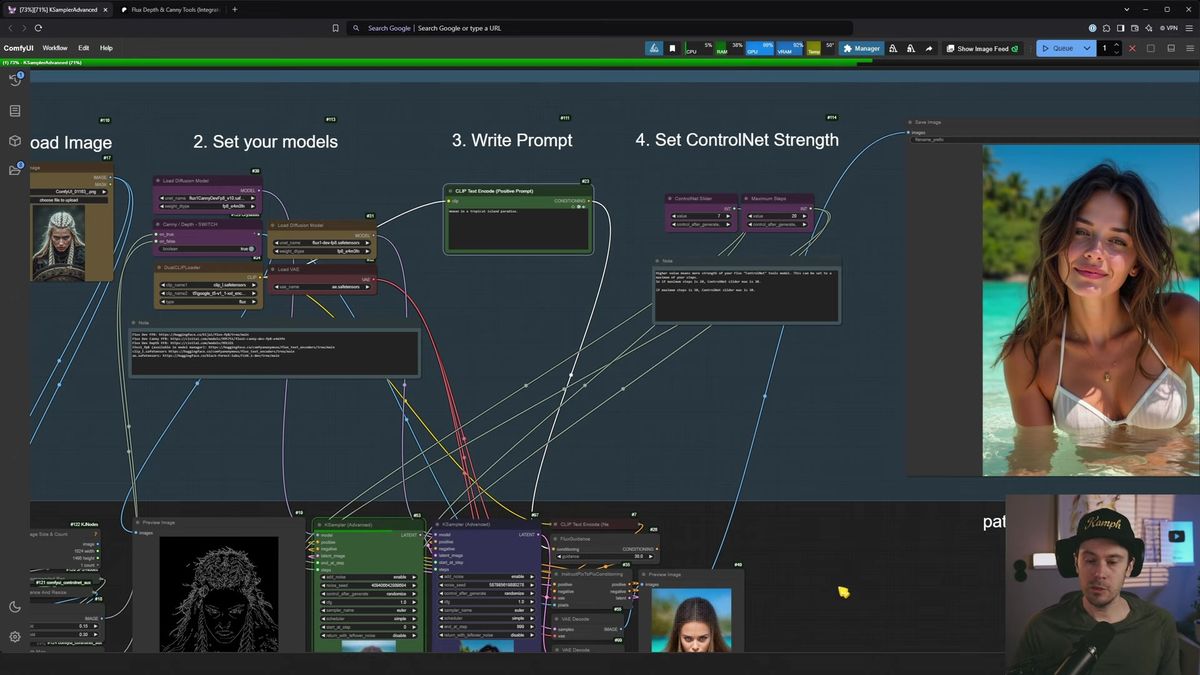
Here is the catch that trips everyone. The Flux Tools depth and canny models from Black Forest Labs are not ControlNet adapters at all. They are full diffusion models with the structure conditioning baked into the weights. So there is no strength dial to turn. You control how much they grip your input by deciding how many sampling steps they run before you swap to the base Flux dev model. That swap is the whole trick.
Sebastian Kamph published a clean two-model version of this workflow, and it is the sharpest take on the technique I have seen. This post walks through what it does, then covers the part the tutorial leaves out: what happens to this graph when you need it to run a thousand times a day inside a product.
Why Flux ControlNet is not the ControlNet you remember
The official Flux Tools depth and canny models are standalone diffusion models, not adapters, so you control structure by step count instead of a strength slider.
Classic ControlNet bolts onto a base model as a side network. You feed it a canny edge map or a depth map, set a strength value from zero to one, and it nudges the base model toward that structure during every step. The base model stays in charge. The adapter whispers.
Flux Tools works differently. Black Forest Labs trained depth and canny conditioning directly into dedicated Flux models. There is no side network and no strength float. The model either runs or it does not. That is cleaner in one sense and a problem in another, because you have lost the dial that let you say "follow the input 40 percent."
The community answer, and the one this workflow uses, is to bring the dial back through sampling. Run the control model for the first chunk of steps to lock structure, then hand the rest of the generation to plain Flux dev so it can fill in everything else with freedom. How you split those steps is your new strength knob.
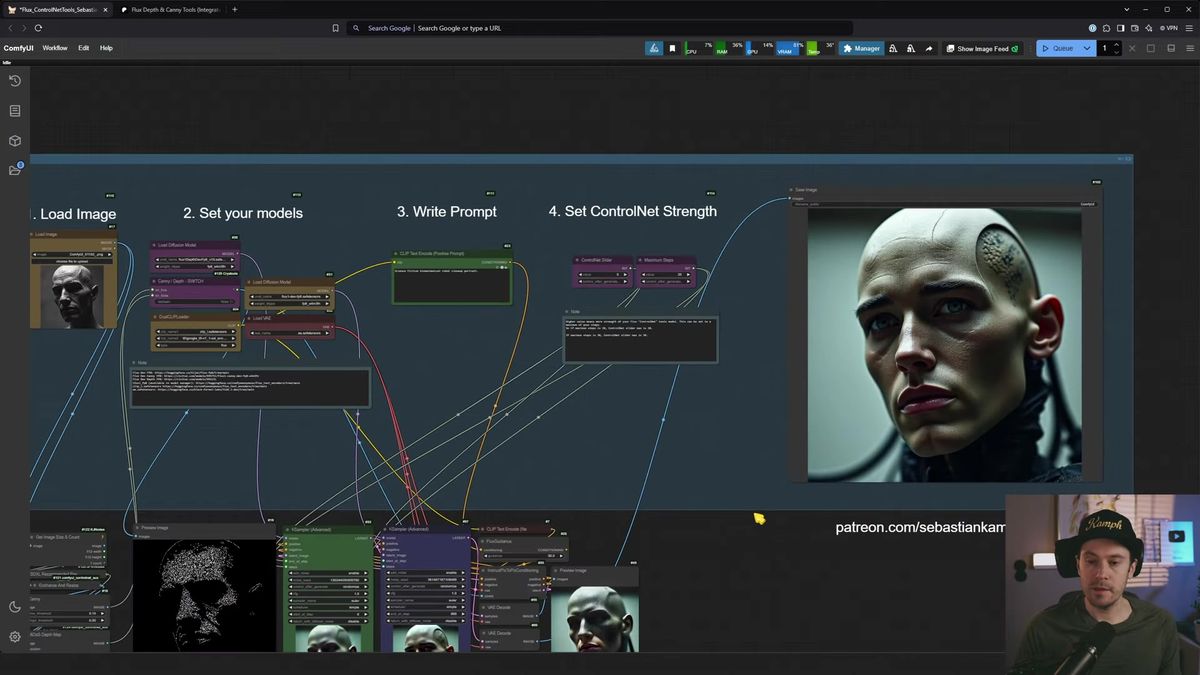
The models you need and where they go
A working Flux ControlNet graph needs the fp8 Flux dev model, the Flux depth and canny models, the dual text encoders, and the Flux VAE, each dropped into a specific ComfyUI folder.
This is the step where most people get a wall of red missing-node errors, so get the files in place first. You need five things.
The diffusion models go in ComfyUI/models/diffusion_models. That is flux1-dev-fp8.safetensors for the base, plus flux1DepthDevFp8 and the matching canny model for control. The fp8 versions are about 11 GB each, which matters in a second.
The two text encoders, clip_l and the t5xxl encoder, go in ComfyUI/models/clip. The Flux VAE, ae.safetensors, goes in ComfyUI/models/vae. That is the full kit. If you want the exact download links and a deeper walk through Flux setup, our ComfyUI Flux install guide covers Dev versus Schnell and the folder layout in detail.
If you still see missing custom nodes after that, open the ComfyUI Manager, hit install missing custom nodes, select all of them, install, then restart ComfyUI and refresh your browser. Skipping the restart is the single most common reason "I installed it and it still says missing."
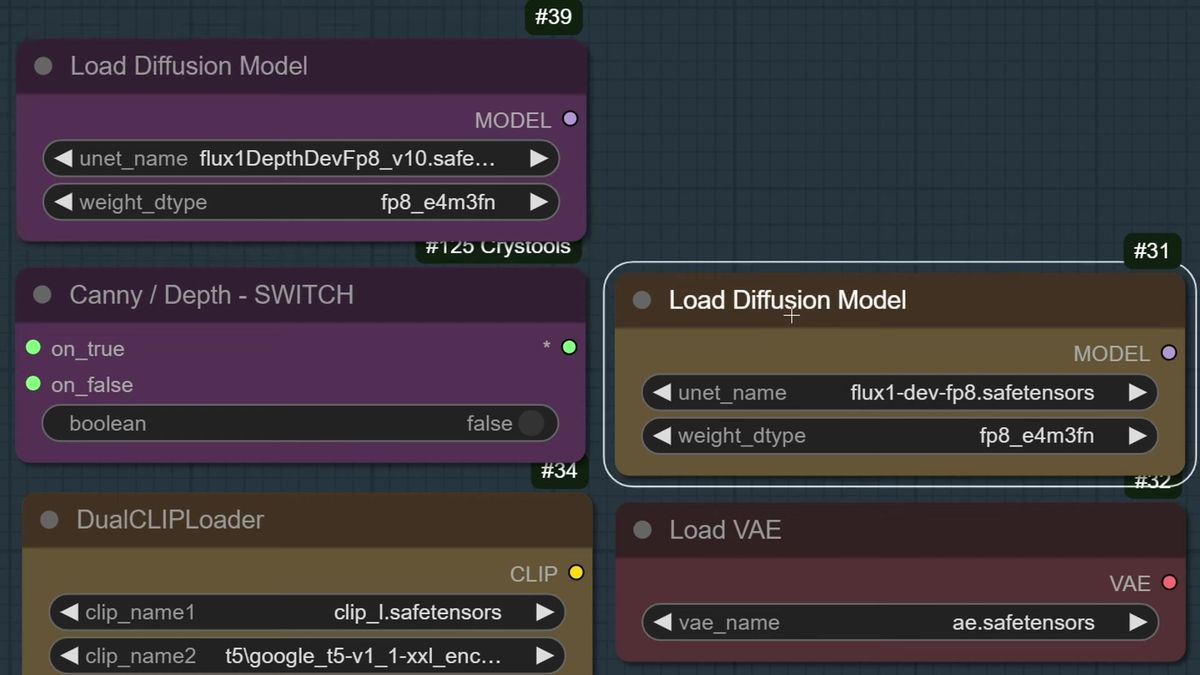
Loading two diffusion models on purpose
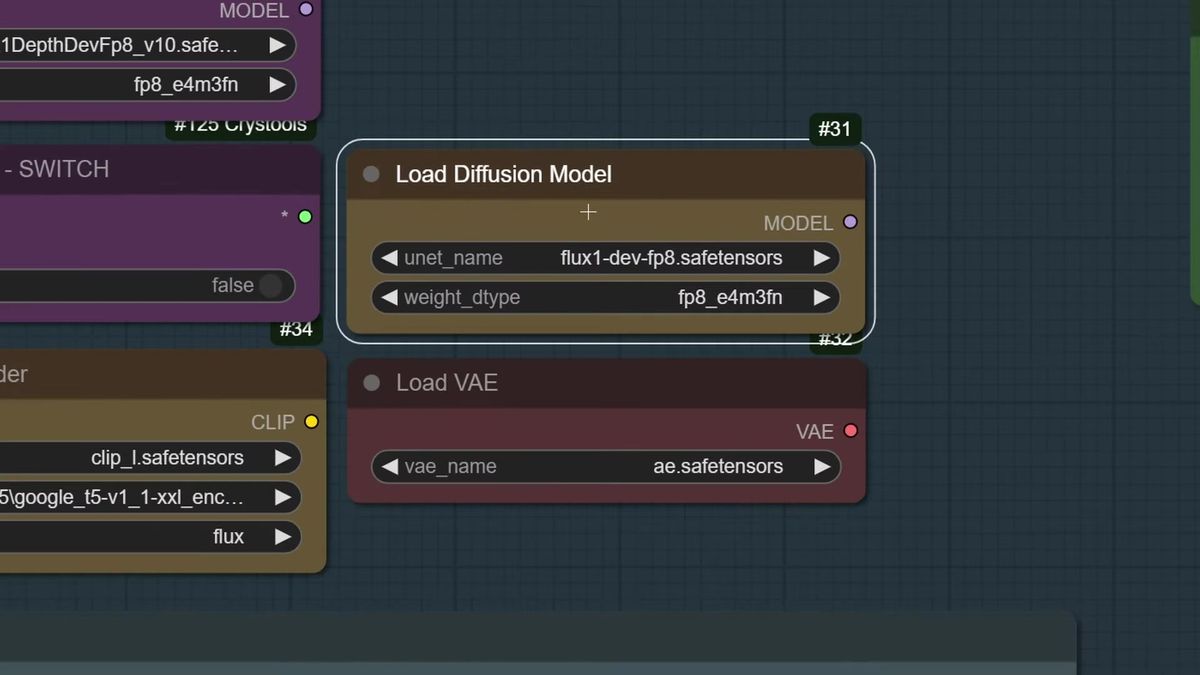
The workflow loads both a control model and the base Flux dev model so it can swap between them mid-generation, which is the mechanism behind adjustable control.
Open the graph and you will notice it loads two diffusion models, not one. That looks wasteful until you understand the plan: run the depth or canny model for the early steps, then switch to base Flux dev for the rest. Both have to be in memory for the handoff to happen without a reload stall.
Yes, holding two models costs more RAM. This is exactly why the workflow uses the fp8 builds at 11 GB a piece instead of the full-precision ones. You want enough system RAM to keep both resident while only one sits on the GPU at a time.
If your machine cannot take it, there is an honest fallback. Disable the second model, run only depth or only canny, and set the control slider to your full step count, say 20 of 20. That runs the control model for the entire generation. You lose the creative-freedom half of the trick, but you cut the memory bill hard. We have run that math for a single workstation and it does not end well past a couple of jobs, more on that below.
The step swap that gives you a control dial
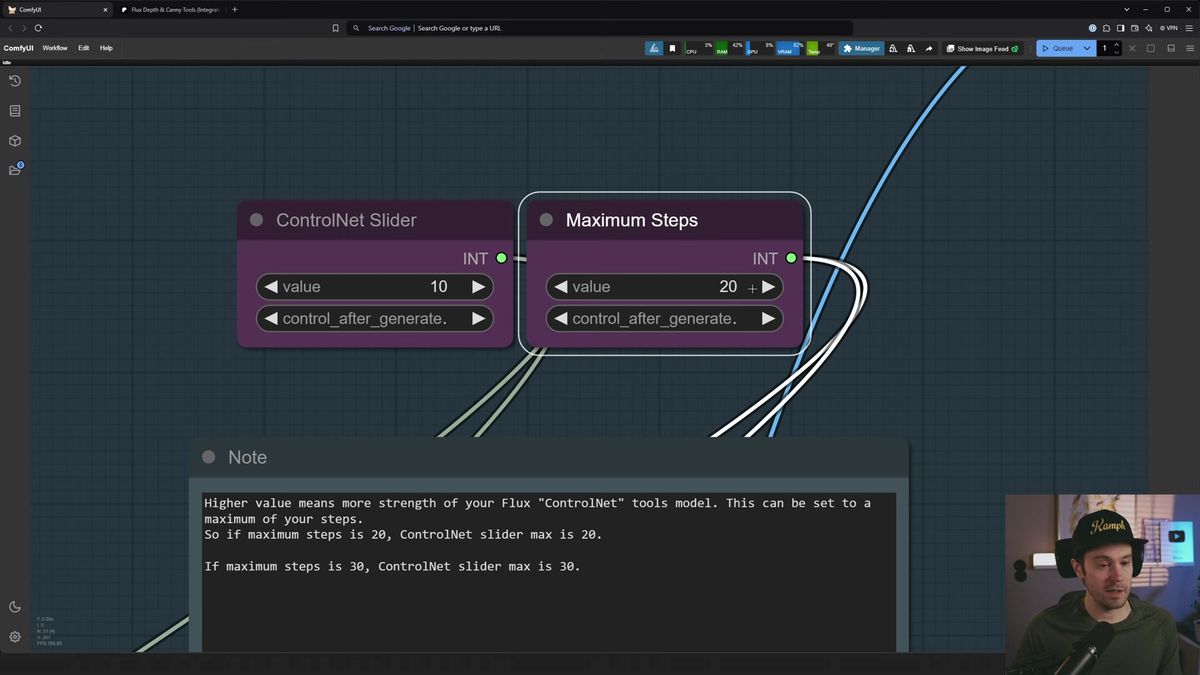
Control strength in this workflow is the number of steps the depth or canny model runs before the base model takes over, so a slider of 7 out of 20 means seven controlled steps and thirteen free ones.
Here is the heart of it. The graph has two numbers: maximum steps, set to 20, and a ControlNet slider that caps at that same 20. The slider is how many of those steps the control model drives. Whatever is left runs on base Flux dev with no structure conditioning at all.
Set the slider to 20 and the canny model runs the full generation. The output clings to your input almost edge for edge. In the demo, a Viking woman fed in at full canny came out nearly identical: same pose, same composition, the braids even survived as something earring-shaped.
Drop the slider to 3 and only the first three steps lock structure. The other 17 steps let Flux invent. You get the rough pose of the input and an otherwise brand new image. Set it to 7 and you land in between, recognizably the same composition with room to restyle.
The sweet spot for most work sits between 3 and 10 steps of control. Push toward the high teens only when you genuinely need the output to trace the input closely. The image preview updates live as you slide, so you can feel the tradeoff instead of guessing.
Depth versus canny, and when each one wins
Canny preserves hard edges and lines for tight structural copies, while depth captures volume and gives the model far more creative room to reinterpret the scene.
The two control models read your input in different ways, and that difference decides the look.
Canny traces edges. It builds a line drawing of your input, then the model fills color and detail inside those lines. That makes it great when you want to keep exact contours: a product silhouette, a logo shape, a precise pose. The cost is rigidity. Strong canny can feel like coloring inside someone else's lines.
Depth reads volume instead. It builds a depth map of what is near and far, then lets the model reinterpret surfaces freely as long as the 3D shape holds. In the demo, turning a portrait into a biomechanical robot worked far better on depth, because the model could grow new robot parts where canny would have fought to keep the original face lines.
A simple rule we use: reach for canny when the silhouette is sacred, reach for depth when you want a transformation that respects the pose but reinvents the surface. If you are coming from sketch-based control, the same instinct carries over, and our ComfyUI sketch to image workflow covers that structural-control mindset from the line-art side.
Where this graph breaks at scale
The desktop workflow is perfect for one artist tuning one image, and it falls apart the moment you need it to run unattended, on demand, for many users at once.
We learned this the expensive way running image work for customers. Three things bite once you leave the single-seat tutorial.
It is memory-hungry by design. Two 11 GB models resident, a chunky t5xxl encoder, and a 1024 by 1024 Flux generation add up fast. One job is fine. Two concurrent jobs means a second machine or a queue, and now you are running infrastructure instead of making images.
It needs a human at the wheel. The whole appeal here is sliding the control value and watching the preview until it looks right. An unattended API call has nobody to slide anything. You have to pick depth versus canny and a step count up front, then trust it, which means baking your defaults into the request.
And it lives on one card. The graph assumes your GPU is sitting idle waiting for you. In production the GPU is the scarce thing, and an idle one between jobs is money burning. That gap, between a workflow that is correct and a service that is reliable, is the real work.
Shipping Flux ControlNet as an API
Runflow runs the same Flux models and ComfyUI graphs as a hosted API, so structured control becomes an endpoint your app calls instead of a machine you babysit.
The pattern that works: keep tuning the creative graph in ComfyUI, then deploy it so your product can fire it programmatically. You upload the workflow, Runflow handles the GPUs, the queue, and the retries, and you get a URL that takes an input image plus your control settings and returns a finished image. No local card, no idle compute bill, no 3am pager when ten users hit it at once.
A run is two calls. Submit the job, then poll for the result:
# Kick off a Flux ControlNet generation against a hosted model or workflow
curl -X POST https://api.runflow.io/v1/models/{owner}/{slug}/runs \
  -H "Authorization: Bearer $RUNFLOW_API_KEY" \
  -H "Content-Type: application/json" \
  -d '{
    "input": {
      "image_url": "https://example.com/input.png",
      "prompt": "science fiction android robot, closeup portrait",
      "control_type": "depth",
      "control_steps": 7,
      "steps": 20
    }
  }'

# Response includes a run id
# { "id": "run_8f2c...", "status": "queued" }

# Poll until the run finishes
curl https://api.runflow.io/v1/runs/run_8f2c... \
  -H "Authorization: Bearer $RUNFLOW_API_KEY"

# { "status": "succeeded", "output": { "images": ["https://..."] } }
The control_steps field is the same step-swap dial from the desktop graph, now a parameter your app sets per request. Pricing is simple fixed per-call, so you can cost a feature before you ship it, and running it on shared cloud GPUs lands around 70 percent cheaper than standing up your own GPU box and the team to babysit it.
Runflow hosts 700+ models including the Flux family, so the base generation in your graph has a hosted equivalent. Browse the model catalog to see what is available, and to push your own ComfyUI workflow into production see how ComfyUI Deploy turns a graph into an endpoint. For the integration details once you are wiring it into an app, the ComfyUI API developer guide walks the full path.
Frequently asked questions
What is ComfyUI Flux ControlNet?
It is a way to guide Flux image generation with the structure of an input image using the official Flux Tools depth and canny models in ComfyUI. Unlike classic ControlNet, these are standalone diffusion models, so you control how strongly they grip the input by choosing how many sampling steps they run before swapping to base Flux dev.
Are the Flux Tools depth and canny models actually ControlNet?
Not in the traditional sense. They are full diffusion models from Black Forest Labs with the conditioning trained into the weights, not side-network adapters. People still call them ControlNet because they serve the same purpose, but they have no strength float, which is why the step-swap technique exists.
How do I set ControlNet strength for Flux in this workflow?
You set it by the number of steps the control model runs. With maximum steps at 20, a slider of 20 runs control for the whole generation and copies the input closely, while a slider of 3 runs control for three steps and lets Flux invent the rest. Most images land well between 3 and 10.
Should I use depth or canny?
Use canny when you need to keep exact edges and silhouettes, like a precise pose or a product outline. Use depth when you want to keep the rough 3D shape but let the model reinterpret surfaces, which is better for big transformations like turning a portrait into a robot.
Why does the workflow load two diffusion models?
So it can run the control model for the early steps, then swap to base Flux dev for the rest without a reload stall. Both models stay in memory for the handoff. It uses fp8 builds at about 11 GB each to keep the memory cost manageable.
Can I run Flux ControlNet on a low-VRAM machine?
Partly. You can disable the second model, run only depth or only canny at full step count, and skip the swap. That cuts the memory cost a lot but loses the creative-freedom half of the technique. For reliable low-resource use, a hosted API runs the same models on cloud GPUs so you do not need the local card at all.
What models and files do I need?
The fp8 Flux dev base model and the Flux depth and canny models in models/diffusion_models, the clip_l and t5xxl text encoders in models/clip, and the Flux VAE ae.safetensors in models/vae. After placing them, install any missing custom nodes through the Manager and restart ComfyUI.
How do I turn this Flux ControlNet workflow into an API?
Deploy the graph to a platform that runs ComfyUI in the cloud. You upload the workflow, it handles GPUs, queueing, and retries, and you get an endpoint that takes an input image plus your control settings and returns a result. Our ComfyUI to production guide covers the gotchas of making a desktop graph reliable.
Where to go next
- Watch the Sebastian Kamph tutorial end to end and download the workflow so you can follow the node groups in order.
- Place the five files: the fp8 Flux dev base, the Flux depth and canny models, the two text encoders, and the Flux VAE, then restart ComfyUI.
- Run one image at full canny strength to see how tightly it copies your input, then drop the control slider to 3 and watch the model take over.
- Switch the same image to depth and compare, so you feel where each control type wins before you commit to defaults.
- To run this for many users instead of one, read the ComfyUI to production guide for how a desktop graph becomes a hosted job.
- Deploy your workflow as an endpoint with ComfyUI Deploy, or call a base Flux model from the model catalog using the poll pattern above.
- Wire the endpoint into your app with depth-versus-canny and a step count as request parameters, so structured control is one API call away.
The slider gave you a dial for how much of your input survives. The real question is whether the thing answering at 3am when ten users want their photo restyled is a card under your desk, or an endpoint that just works.
Start free at runflow.io.
Want custom benchmarks for your workload?
We'll run our evaluation pipeline against your production data, for free.
Talk to Founders