ComfyUI face detailer: fix mangled AI faces in 2026
A ComfyUI face detailer walkthrough: bbox plus segmentation detection, the FaceDetailer node, two-pass recovery, then how to run the same pass via API.

Five faces in one image. Four of them melted. The runway shot looked perfect at thumbnail size, then you zoom in and the background models have eyes where their cheekbones should be. We hit this wall the expensive way, by shipping a batch of product images before anyone looked at them at full resolution, and the fix is not a better base model. It is a second pass that crops the face, re-renders it at a higher resolution, and blends it back. That second pass is the face detailer.
The ComfyUI face detailer lives in the impact pack, and it automates what used to be manual inpainting: detect the face, build a mask, denoise just that region, paste it back. On a basic SDXL setup it cleans up roughly 80% of low-resolution faces in a single pass. The other 20% need a checkpoint swap, a second pass, or both, and most of this post is about that 20%.
ControlAltAI published a tutorial that walks four workflows, from a plain one-face fix up to a full per-feature editor with hair and clothing masks. This post paraphrases the technique, then covers the part the video does not: what changes when you run this pass on ten thousand images instead of one, and why that is where it stops being a desktop workflow.
Why AI faces break, and why a second pass fixes them
Diffusion models spend their pixel budget on the whole frame, so any face that occupies a small fraction of the image gets too few pixels to render cleanly.
When a face is 80 pixels tall in a 1024-pixel frame, the model has almost nothing to work with. It knows there should be eyes, a nose, a mouth, and it paints a plausible blur. At full resolution that blur reads as melted. This is why background faces and crowd shots fail first: they are the smallest faces in the image.
The face detailer fixes this by changing the resolution the face is rendered at. It detects the face, crops a region around it, scales that crop up to something like 768 or 1024 pixels, runs a fresh denoise pass on it, then scales it back down and pastes it into the original. The face now had a full pixel budget to itself, so it comes back sharp.
That is the whole idea. Everything else is detection accuracy and blend quality.
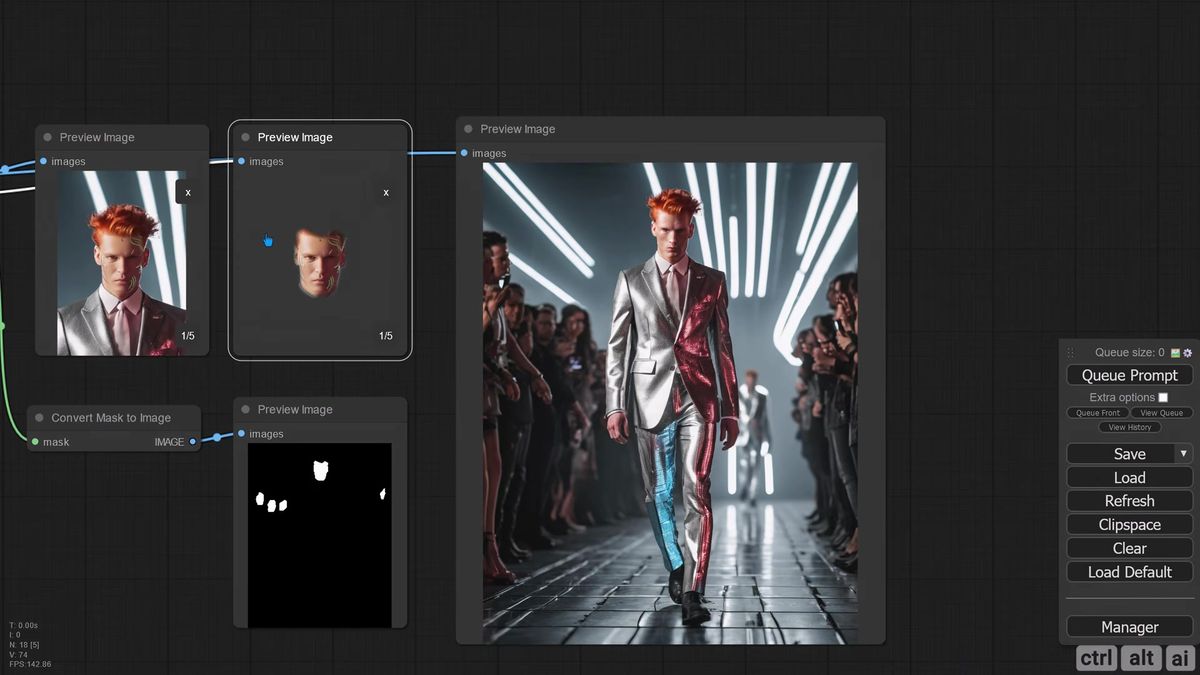
Detection: bbox, segmentation, and why you want both
The face detailer finds faces with two different detectors, a bounding-box model that returns a rectangle and a segmentation model that returns a silhouette, and combining them gives the tightest, most accurate mask.
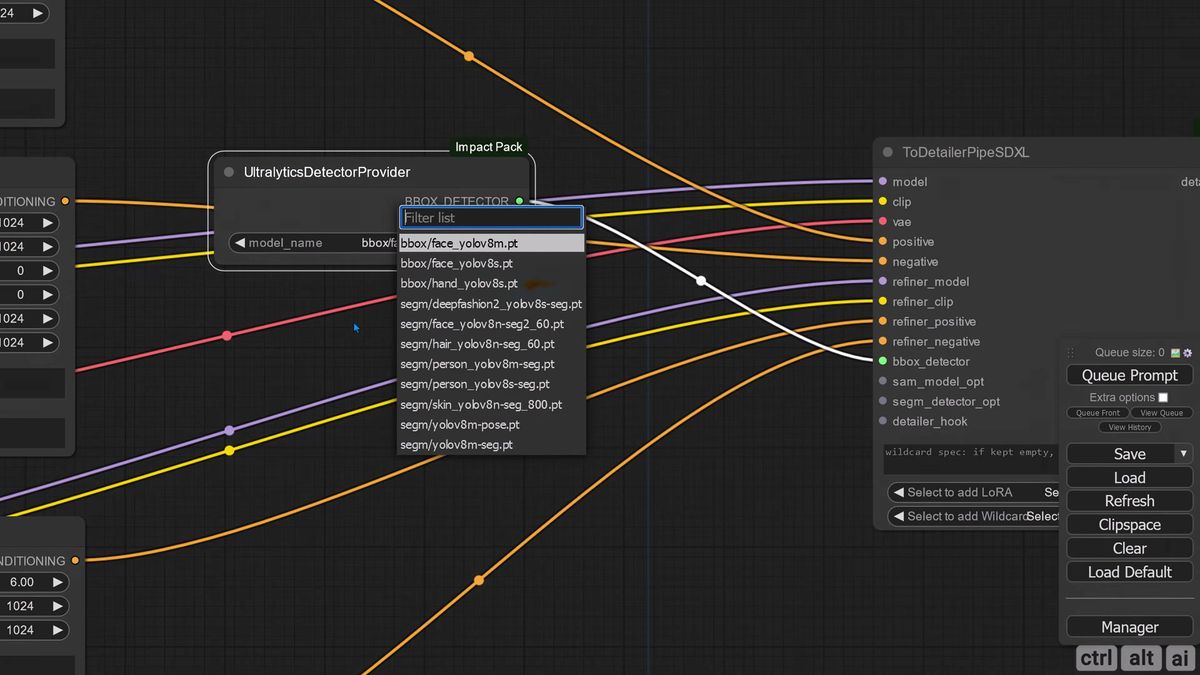
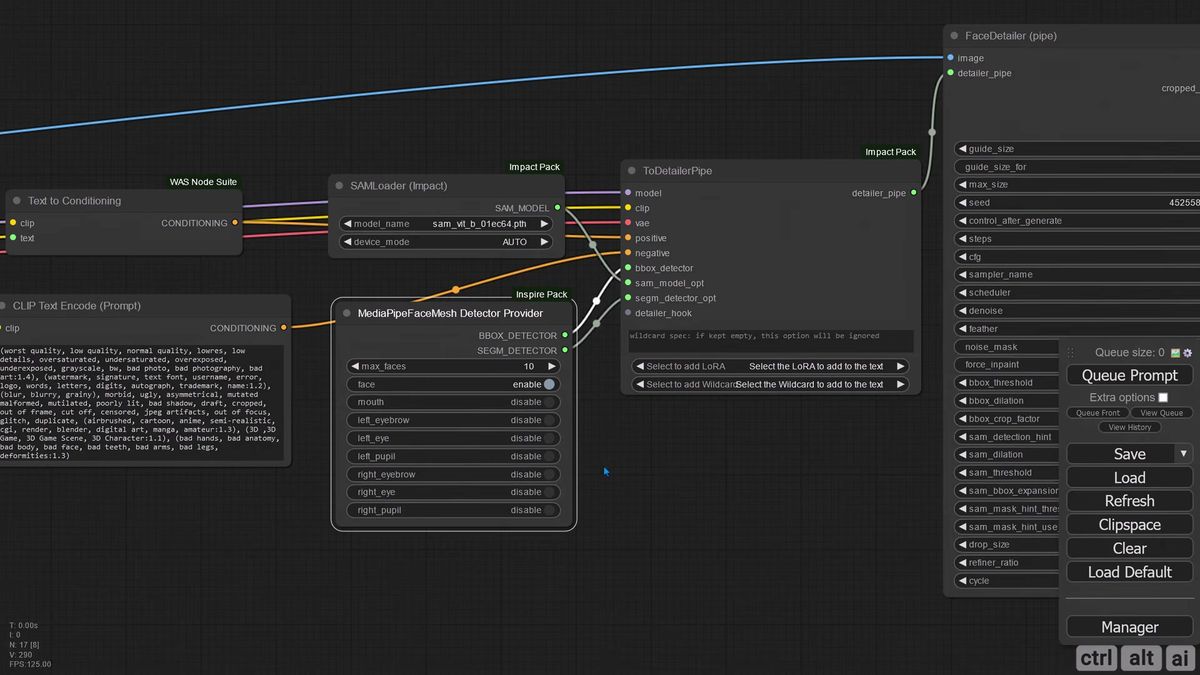
You install the Ultralytics models through the ComfyUI manager. Two matter for faces: a bbox model like YOLOv8s-face that draws a rectangle around each face, and a segmentation model like YOLOv8n-seg that traces the actual outline. The bbox is fast and reliable for finding faces. The segmentation outline keeps the mask off the background, so the denoise pass does not bleed into hair or sky.
The impact pack also ships a more capable option, the Segment Anything Model, loaded through a SAM loader node. SAM produces cleaner silhouettes than the basic segmentation model, at the cost of a download and a little more compute. For most face work, bbox plus SAM is the combination that holds up.
One detail that trips people up: the detector provider node does not auto-populate when you drag a connection out. You search for the Ultralytics node and add it by hand, then point its bbox output at the bbox input and its segmentation output at the segm input. Cross them and the run fails.
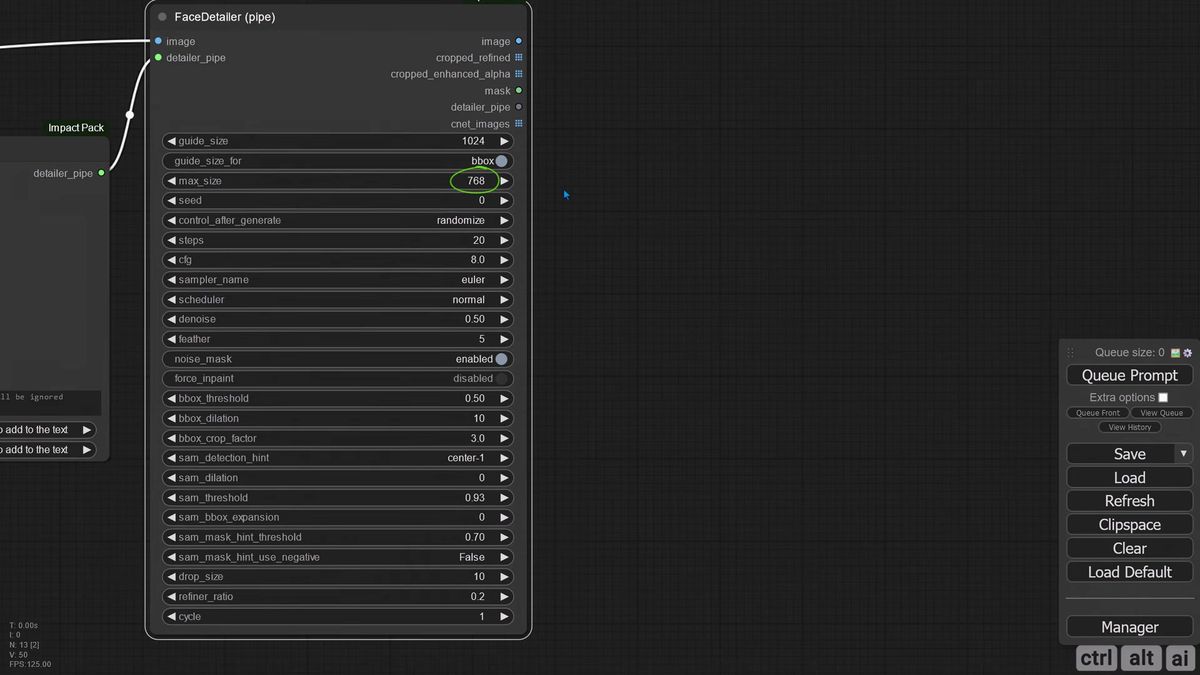
The FaceDetailer node, parameter by parameter
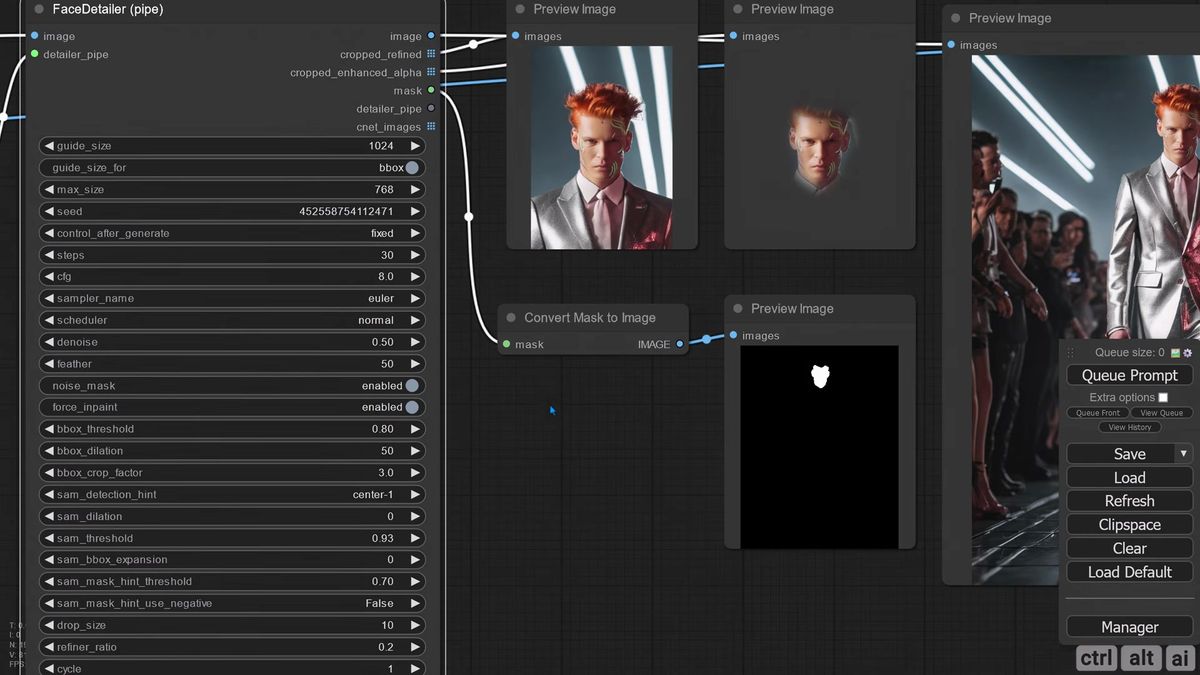
The FaceDetailer node has about twenty parameters, but five of them do most of the work: guide size, denoise, bbox threshold, crop factor, and feather.
Here is what each one actually controls, in the order you reach for them.
| Parameter | What it does | Where to start |
|---|---|---|
| guide_size | Target resolution the cropped face is scaled to before denoise | 768 for speed, 1024 for quality |
| max_size | Upper cap on that scale-up | 768 to 1024 |
| denoise | How much the face is re-rendered. Higher means more change | 0.4 to 0.5 |
| bbox_threshold | Detection confidence. Higher selects only bigger, clearer faces | 0.5, raise to isolate the main face |
| bbox_dilation | Grows the mask outward to catch ears, jaw, hairline | 10, raise if edges are clipped |
| crop_factor | How much surrounding context the model gets around the face | 3.0, raise for tight features |
| feather | How softly the new face blends into the old image | 5, higher hides the seam |
The bbox threshold is the one that surprises people. Set it to 0.5 on a five-face runway shot and it detects all five. If you only want the main subject fixed, raise the threshold until the small background faces drop out of the selection. The detector cannot pick only the smallest face, it works the other way: a higher confidence keeps the big, clear faces and discards the rest.
Denoise is the dial between safe and destructive. At 0.4 you nudge the face cleaner while keeping the identity. Push past 0.6 and you are generating a new face that happens to sit in the same spot. For a fix, you want low. For a deliberate face change, you want high, and we will get to that.
When one pass is not enough: checkpoints and the second pass
About 20% of faces will not recover in a single pass, and the fix is almost always a second FaceDetailer node fed a fine-tuned checkpoint, not more denoise on the first.
The base SDXL checkpoint is a generalist. It is fine for the first pass on a normal face, and it falls apart on a badly distorted one. When the tutorial fed it a deliberately mangled face, one pass through the base model barely moved the needle, because the model could not infer a clean face from that much noise.
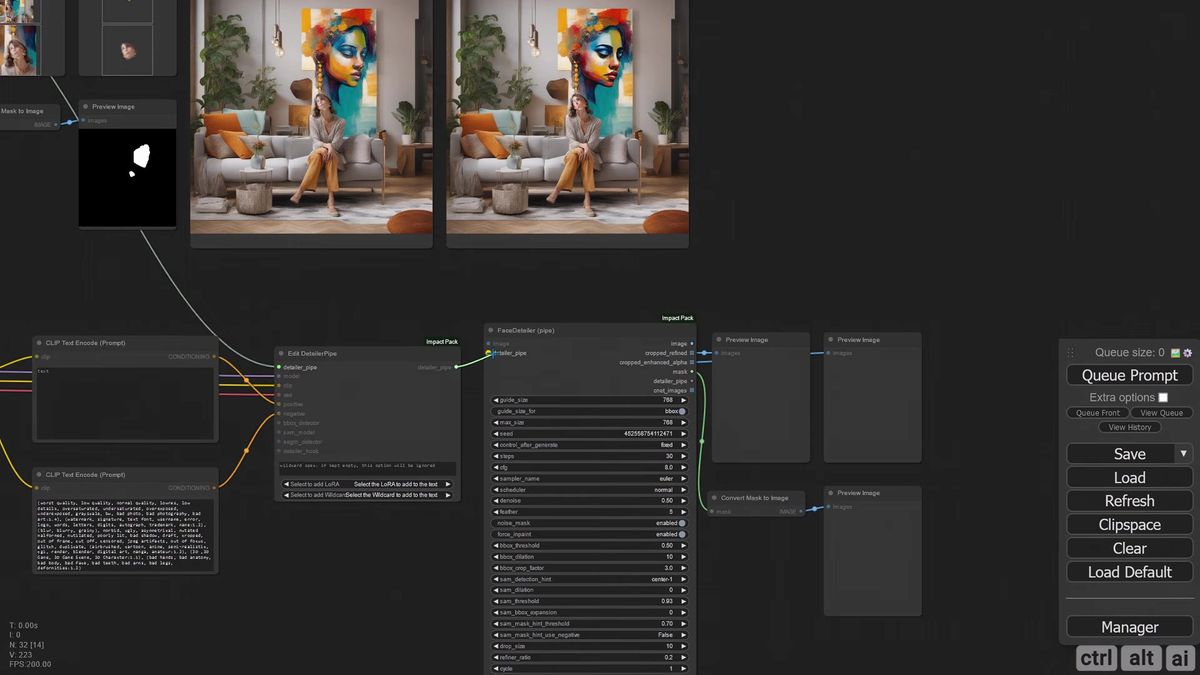
Two things fix this. First, swap the checkpoint. Fine-tuned models like Juggernaut Reborn carry far more facial detail than the base, and a second FaceDetailer node running one of them recovers faces the base could not. The video ran the same distorted image with random seeds and got a clean face six out of ten times, which is the honest hit rate to expect on hard cases.
Second, chain the passes. You add an edit-detailer-pipe node, duplicate the FaceDetailer, and route the image output of the first into the second. The first pass does the heavy lifting, the second cleans up artifacts. Keep the checkpoints compatible: an SDXL first pass needs an SDXL second pass, and an SD 1.5 build stays on SD 1.5 throughout. Some checkpoints introduce artifacts on the first pass that the second corrects. Others overcook the image on the second pass, so you watch both outputs and stop when it looks right.
There is a quiet lesson in that six-out-of-ten number. A face detailer is not deterministic. Run it on a thousand images and a slice of them will need a reroll, which is a manual click on the desktop and a real engineering problem at scale.
From fixing faces to editing them: MediaPipe and CLIPSeg
The same detection-and-mask machinery turns into a per-feature editor once you swap the face detector for a MediaPipe face mesh or a CLIPSeg text mask.
This is where the workflow gets interesting. The MediaPipe face mesh detector is built for faces, and it lets you enable a specific feature, eyes, lips, eyebrows, and it builds a mask for only that region. Add a tiny LoRA and a prompt that targets the mask, and you can change eye color to light green or restyle the lips without touching the rest of the face. Stack edit-detailer-pipe nodes and you edit several features in one queue.
Confined regions need more context, though. Eyes and lips are small, so the model runs short on pixel data and produces artifacts. The fix is to expand the crop factor and the bbox dilation, which hands the model more surrounding image to reason from. The tutorial fixed a broken eye edit by pushing bbox dilation to 50, SAM dilation and bbox expansion up, and crop factor to four.
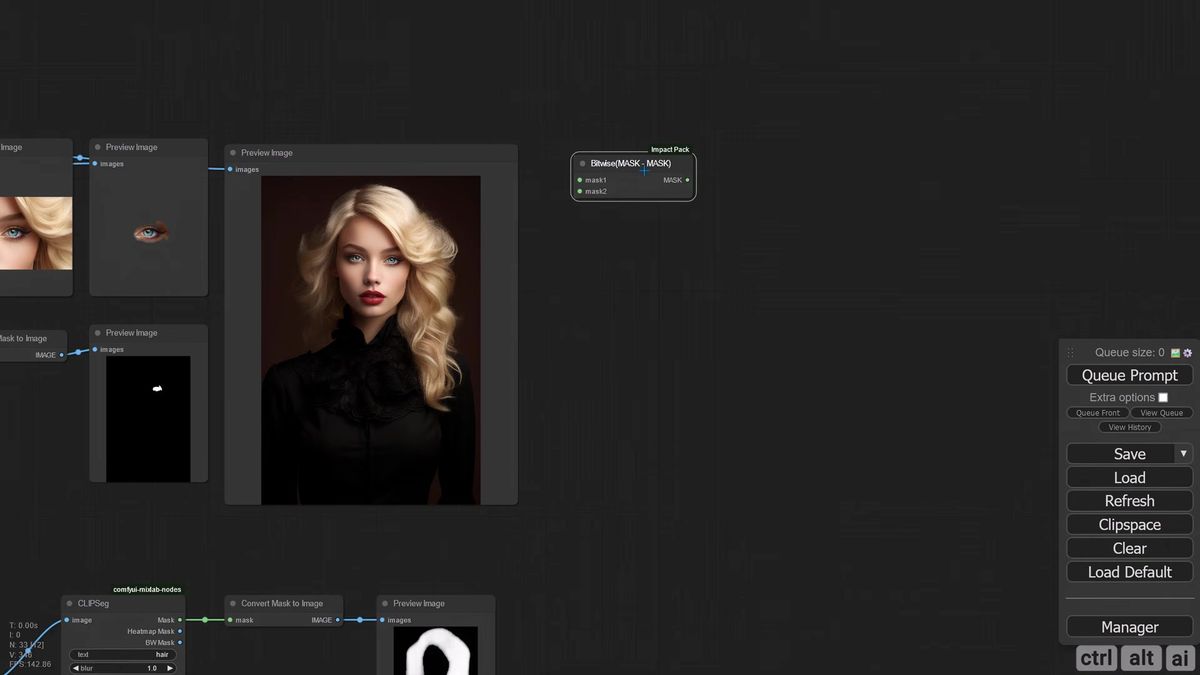
For hair and clothing you switch to CLIPSeg, which masks by text. Type "hair" and it masks the hair. The catch is overlap: a hair mask and a face mask intersect, so you subtract the face mask from the hair mask with a mask-minus-mask node to stop the denoise from regenerating the face while you restyle the hair. Same trick for clothing, where the hair overlaps the collar. It is fiddly node wiring, and it is genuinely accurate once built.
What changes when the face detailer runs in production
A face detailer pass on your laptop is a single click. The same pass behind an app is a queue, a GPU bill, a retry policy, and a checkpoint you have to keep loaded, and that is where the desktop workflow stops being enough.
We learned this building image pipelines for ecommerce. The face pass is cheap to describe and expensive to operate. Walk the list. You need a GPU warm and holding the checkpoint, because cold-loading SDXL plus a fine-tune on every request is slow. You need a queue, because requests arrive in bursts. You need a retry path for the four-in-ten hard faces that fail the first roll. You need someone to watch for the checkpoint update that quietly breaks an Ultralytics node. None of that shows up in a tutorial, and all of it shows up in your on-call rotation.
There are two honest ways to run this at scale. One: deploy your exact ComfyUI graph, face detailer node and all, as a managed endpoint, so the graph you tuned on your desktop becomes an API call without you renting and babysitting the GPU. That is what ComfyUI deploy on Runflow is for. Two: if your face pass is really a masked region edit, a prompt-driven inpaint, you can skip the custom graph and call a hosted editing model directly.
That second path is a single request. A face fix is a masked re-render, and an editing model does masked re-renders:
# Submit a face-region edit as a hosted inpaint
curl -X POST https://api.runflow.io/v1/models/black-forest-labs/flux-kontext/runs \
  -H "Authorization: Bearer rf_live_your_key" \
  -H "Content-Type: application/json" \
  -d '{
    "input": {
      "prompt": "sharpen and restore the face, keep the same identity, pose, and lighting",
      "image_url": "https://yourapp.com/uploads/runway-shot.jpg"
    }
  }'

# Response returns a run id, e.g. { "id": "run_abc123", "status": "queued" }

# Poll until the run finishes
curl https://api.runflow.io/v1/runs/run_abc123 \
  -H "Authorization: Bearer rf_live_your_key"
No GPU to rent, no checkpoint to keep warm, no queue to write. You browse the Runflow model catalog for the editing model that fits, send the call, poll the run, get a URL back. The pricing is simple and fixed per call, and running this hosted lands roughly 70% cheaper than standing up the same GPU capacity in-house once you count the DevOps time. The reliability is the real reason, though: the queue and the retries and the warm GPU are someone else's pager, not yours.
When to pick which: if your edit is a precise multi-mask job, hair plus eyes plus clothing in one graph, deploy the ComfyUI workflow you already built. If it is "fix this face," a hosted inpaint call is fewer moving parts and no AI team required.
Upscaling the result without inventing detail
After the face is fixed, an Ultimate SD Upscale node in "none" mode enlarges the whole image one and a half to two times without adding new detail, which keeps the repaired face from drifting.
Once the face pass is done, you usually want the final image larger. The Ultimate SD Upscale node handles this, but switch its mode from linear to none. Linear keeps adding detail as it upscales, which can undo the face you just fixed. None gives you a clean image-to-image upscale that enlarges without reinventing. One and a half to two times per pass is the safe range. Stack passes if you need bigger.
That ordering matters: detail the face first, upscale second. Upscale first and you are detailing a bigger blurry face, which costs more compute for the same result.
Frequently asked questions
What is the ComfyUI face detailer?
It is a node from the impact pack that automatically detects faces in an image, masks them, re-renders each face at a higher resolution, and blends the result back. It replaces manual inpainting for fixing distorted or low-resolution AI faces.
Which models do I need to install?
Two custom node packs, impact and inspire, plus the Ultralytics detection models through the ComfyUI manager. For faces you want a bbox model like YOLOv8s-face and a segmentation model. The advanced builds also use the Segment Anything Model, MediaPipe face mesh, and CLIPSeg.
Why is my face still blurry after one pass?
Roughly 20% of faces will not recover in a single pass. Swap to a fine-tuned checkpoint like Juggernaut Reborn, add a second FaceDetailer node chained off the first, and try a few random seeds. Hard cases recover maybe six times in ten.
What denoise value should I use?
Start at 0.4 to 0.5 for a fix that keeps the identity. Push higher only when you want to change the face rather than repair it, since high denoise generates a new face in the same position.
Can I edit only the eyes or the hair?
Yes. Use the MediaPipe face mesh detector to mask individual features like eyes, lips, and eyebrows. Use CLIPSeg with a text prompt for hair and clothing. Subtract overlapping masks with a mask-minus-mask node so the denoise stays in the region you want.
How do I keep the mask off the background?
Combine a bbox detector with a segmentation or SAM model. The bbox finds the face, the segmentation traces the outline, and together they keep the denoise from bleeding into hair, ears, or sky. Tune bbox dilation and feather to clean the edges.
Why does the second pass sometimes look worse?
Some checkpoints overcook the image on the second pass. Preview both outputs and stop at whichever looks right. The second pass is there to correct first-pass artifacts, not to run by default on every image.
Can I run the face detailer pass through an API instead of a desktop?
Yes. Deploy your ComfyUI graph as a managed endpoint to run the exact workflow, or call a hosted editing model for a simpler prompt-driven face fix. Both remove the GPU and queue work from your side.
How much does it cost to run at scale?
Running a hosted face pass is simple fixed pricing per call. Compared with renting and operating the GPU capacity yourself, that lands around 70% cheaper once you count the DevOps and on-call time, with no AI team required.
Where to go next
- Build the basic one-face workflow first: bbox plus SAM detection into a single FaceDetailer node, denoise at 0.4, and confirm it fixes a normal face before adding complexity.
- Add the second pass with a fine-tuned checkpoint for the 20% of faces that fail, and test a few random seeds on your hardest image.
- Layer in MediaPipe face mesh and CLIPSeg masks when you need per-feature edits, using mask subtraction to protect regions you want untouched.
- Read the ComfyUI API developer guide to understand how a graph becomes a callable endpoint.
- If you keep faces consistent across many images, pair this with the ComfyUI consistent character workflow with FLUX, and use IPAdapter for identity transfer where a reference face helps.
- When the desktop run becomes a production queue, move the graph to ComfyUI deploy or call a hosted editing model from the Runflow API so the GPU and retries are not your problem.
Start free at runflow.io.
Want custom benchmarks for your workload?
We'll run our evaluation pipeline against your production data, for free.
Talk to Founders