ComfyUI Qwen image edit: workflows and API guide for 2026
ComfyUI Qwen image edit walkthrough: build the edit, combine, inpaint, and try-on workflows, then call Qwen-Image-Edit as an API instead of self-hosting weights.

8 steps instead of 20. That's the one number that makes ComfyUI Qwen image edit usable on your own desk. Drop an 8-step Lightning LoRA into the graph and a 20-step KSampler run collapses to 8, so an edit that crawled now lands in a fraction of the time. Pair it with a Q8 quant on a 24GB card and you have an open editor that holds identity and detail better than most.
We learned the rest of the math the hard way (we run this stuff in production, not in a demo). Qwen-Image-Edit sits in the same lane as Flux Kontext, but its trick is the Text Encode Qwen Image Edit node: it encodes the text prompt and the source image together, not text alone. That joint encode is what gives the model its grip on edits. The cost is the usual one. A real GPU, the right quant, a clip model, a VAE, and the speed LoRA, all loaded before you generate a single pixel.
So this post does two things. First it walks the Qwen edit workflows you can build in ComfyUI: single-image edits, combining multiple inputs, inpainting, background swaps, restores, and try-on. Then it shows the production side. When you go from "this works on my machine" to thousands of users a day, you call the same model over an API instead of babysitting weights and VRAM.
A note on disclosure. Runflow is our product. The API shapes below are Runflow's. The ComfyUI method is provider-agnostic and works whether or not you ever touch Runflow. We flag clearly where each path fits.
What you need before the first Qwen edit
Qwen image edit in ComfyUI needs four pieces: an updated ComfyUI build, the Qwen-Image-Edit diffusion model at a quant your card can fit, a clip model, a VAE, and a speed LoRA.
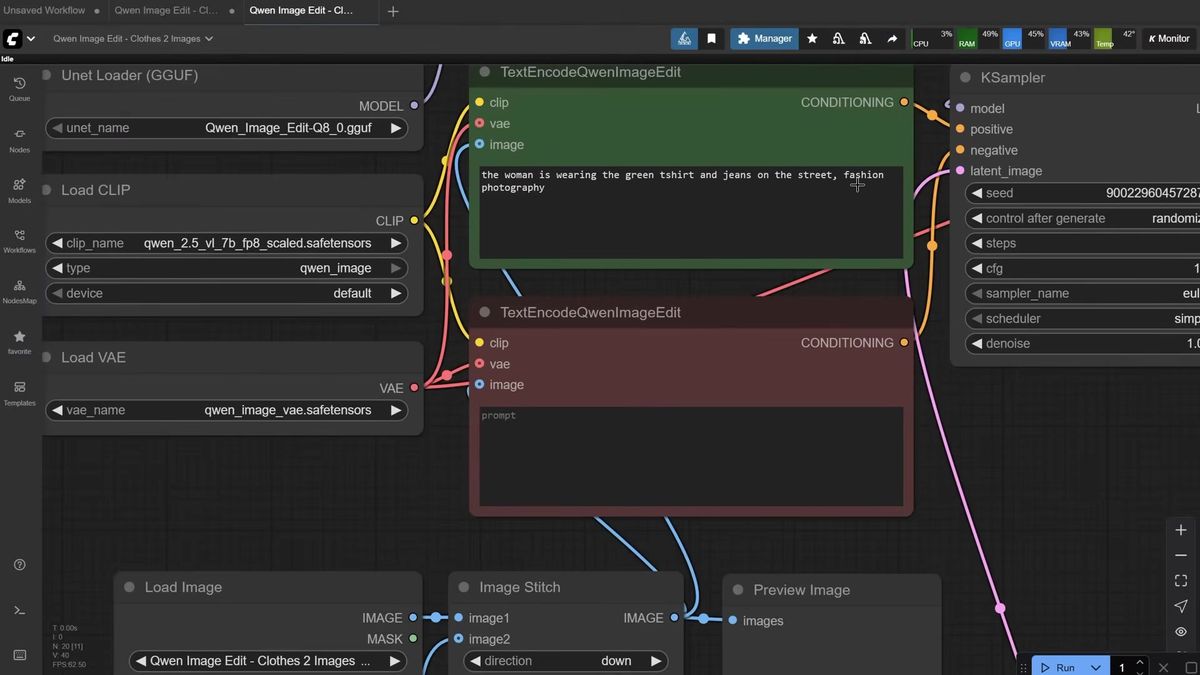
Start with the update. If a core node like Text Encode Qwen Image Edit throws an error, you are on an old ComfyUI version. Run the update batch file in your install folder, or update everything through the Manager, then reinstall any missing custom nodes.
The model quant decision is the one beginners get wrong. Lower quant means lower VRAM use but a slightly less capable model. The pixaroma walkthrough uses a simple rule of thumb on a 24GB RTX 4090: if the model file is under your VRAM in size, try it. Q8 is the target on 24GB, with Q6 as the fallback. From Q5 and up the quality stays clean. Below Q5 it starts to drop.
Files go in specific folders. The diffusion model goes in diffusion_models, the clip model in clip, the VAE in vae, and the LoRA in loras. The speed LoRA matters: an 8-step Lightning LoRA lets you run the KSampler at 8 steps instead of 20. Four-step LoRAs exist too with little quality loss. Drop the LoRA in and you cut generation time hard.
If you want the full path from a local ComfyUI graph to a hosted endpoint, the ComfyUI API developer guide covers the moving parts.
The base single-image edit workflow
A single Qwen edit needs a Load Image node, a scale-to-pixels node, the new Text Encode Qwen Image Edit nodes for positive and negative prompts, the model and LoRA loaders, and a KSampler.
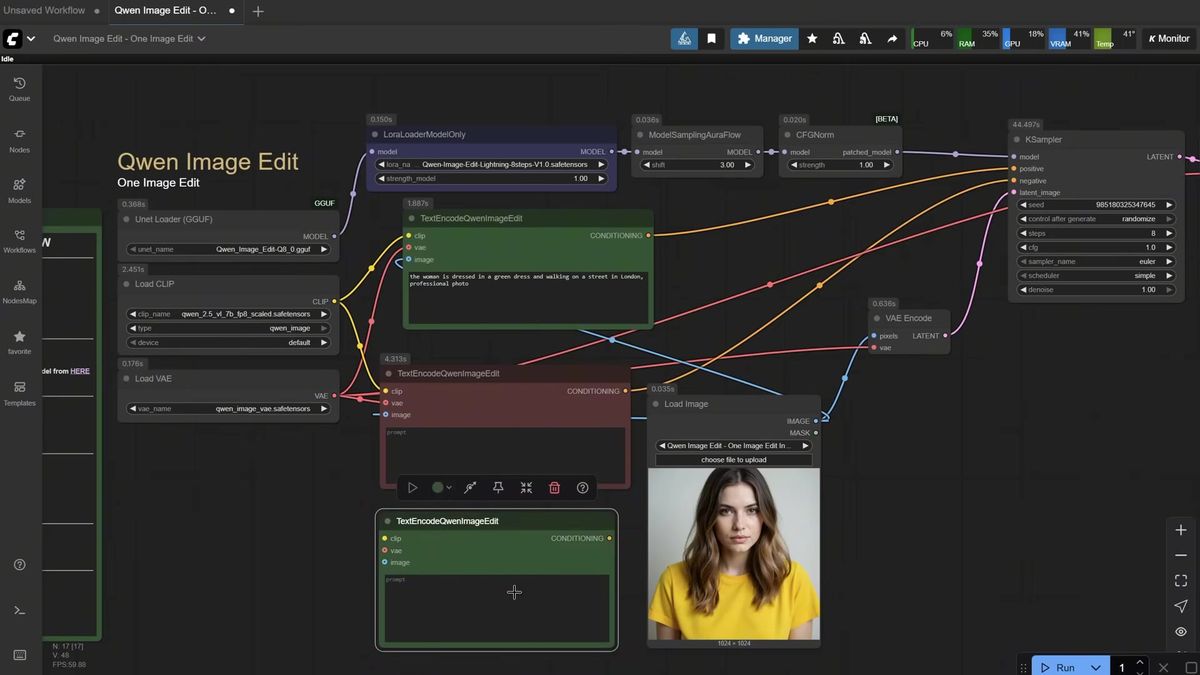
Load your image, then feed it through a scale-image-to-total-pixels node. This caps the resolution so a huge input does not crash the run or take forever. You can bypass it when you want an exact size, but leaving it on is the safer default.
The node that changed everything for Qwen is Text Encode Qwen Image Edit. Old workflows used a plain text encoder for the prompt. This one encodes both text and image. So your loaded image does not only flow into the KSampler. It also flows into the encode nodes, which is what gives Qwen its strong instruction following on edits.
Prompt structure is the lever. Name the thing you want to change first, the woman, the t-shirt, the hair, so the model knows the subject. Then state the change. With an 8-step LoRA, set the KSampler to 8 steps. Drop the LoRA and you climb back to 20 steps for a clean result. The rest of the graph is close to a standard Flux workflow: a diffusion loader, a LoRA loader you can chain for style LoRAs, a shift node, CFG norm, then the KSampler and VAE decode.
Combining multiple images in one edit
Qwen edit can take two, three, or four input images stitched into a single canvas, then edit them together as one scene.
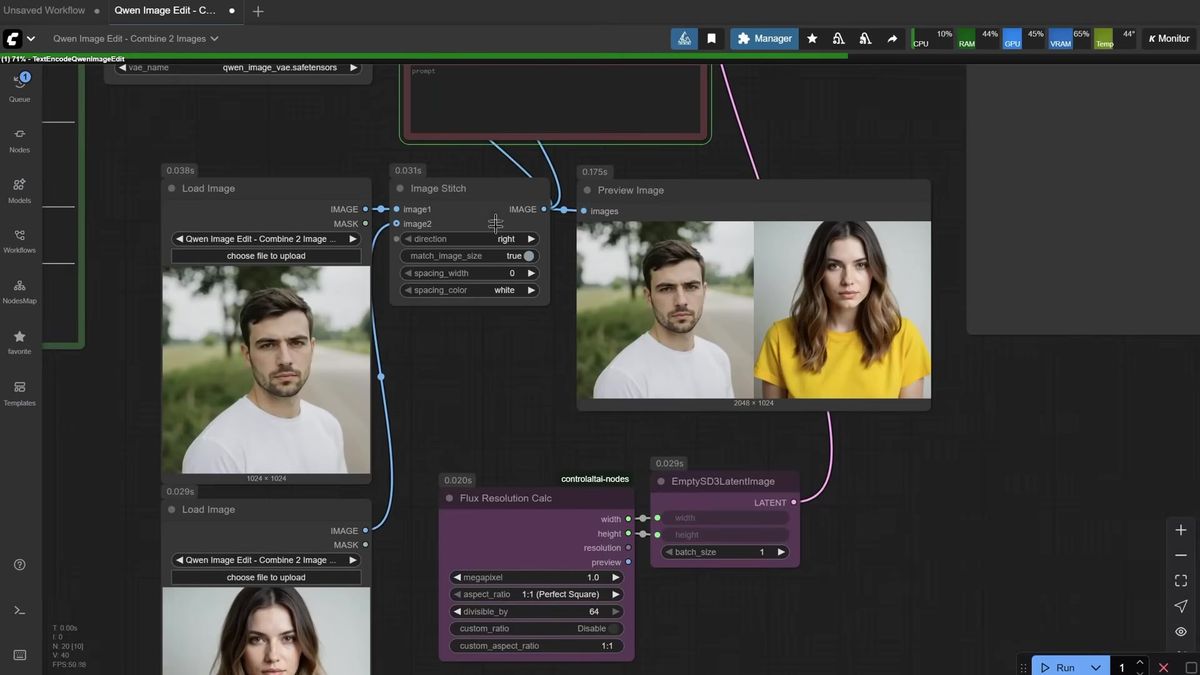
The stitch node merges two images side by side. Want a couple taking a selfie? Load both portraits, stitch them, and prompt "the man and the woman are a couple taking a selfie." The key is naming the subject from each input so the model knows what came from where.
Stitch only takes two images at a time, so you chain stitches. Combine the man and woman, then stitch the result with a dog image. The merged canvas flows into the Text Encode Qwen Image Edit nodes, and your prompt describes all the subjects and how they interact. To avoid an ultra-wide output, swap the empty latent for a fixed ratio instead of inheriting the stitched dimensions.
This is where Qwen tends to beat Flux Kontext on consistency. It holds the subjects across the merge better than most open editors. It is not flawless on photoreal skin, but for most edits it is genuinely good.
Inpainting for edits that must keep the original
Inpainting masks a small region, regenerates only that area, and pastes it back over the untouched original, so the face and pose stay pixel-identical.
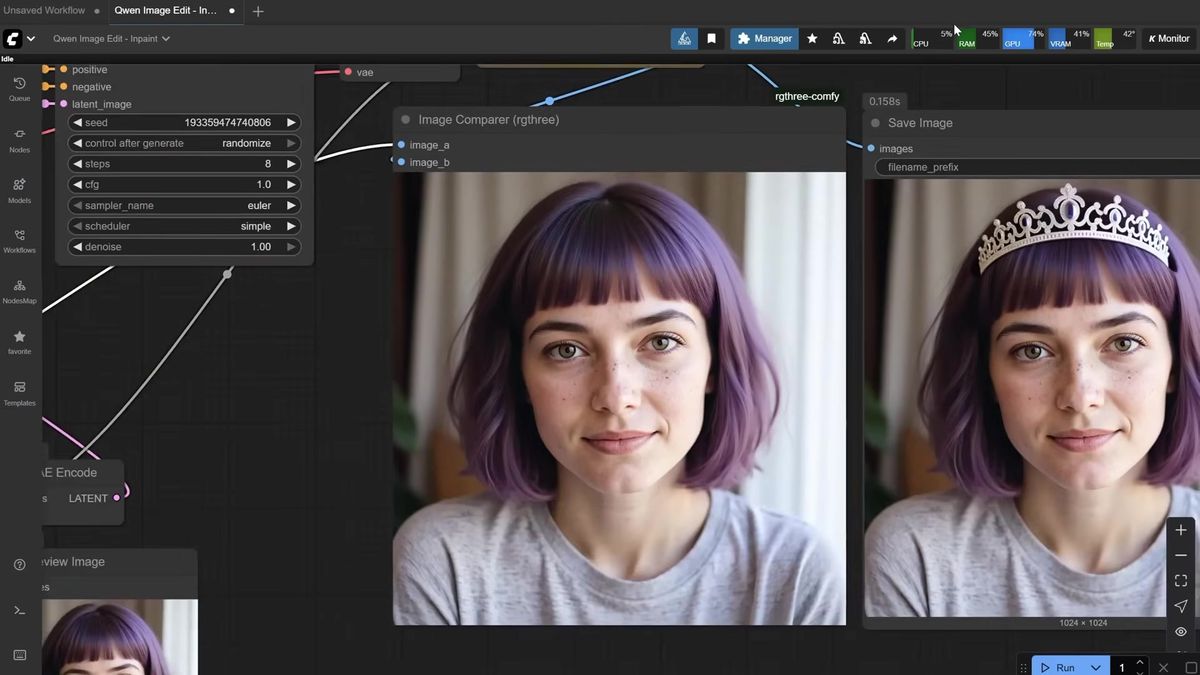
Plain Qwen edit regenerates the whole image, which means small drift, usually in the face. Inpainting fixes that. Right-click the image, open the mask editor, and paint the area to change a little larger than the target. Both the image and the mask flow into the inpaint node. Prompt the change, like "add a silver tiara" or "change the hair color to pink," and you get back the exact original with only the masked region edited.
The constraint is pose. Because the workflow pastes the original back and only reveals the masked area, drastic changes that move the head or body will not blend. Inpainting is the right tool to add, remove, or recolor something while the pose holds still. It runs a touch slower, but for face-critical edits it is worth it.
Add, remove, replace, restore, and try-on
The same base graph covers most real editing jobs by swapping the prompt: add objects, remove them, replace backgrounds or subjects, restore old photos, colorize, change aspect ratio, and dress a model in your product.
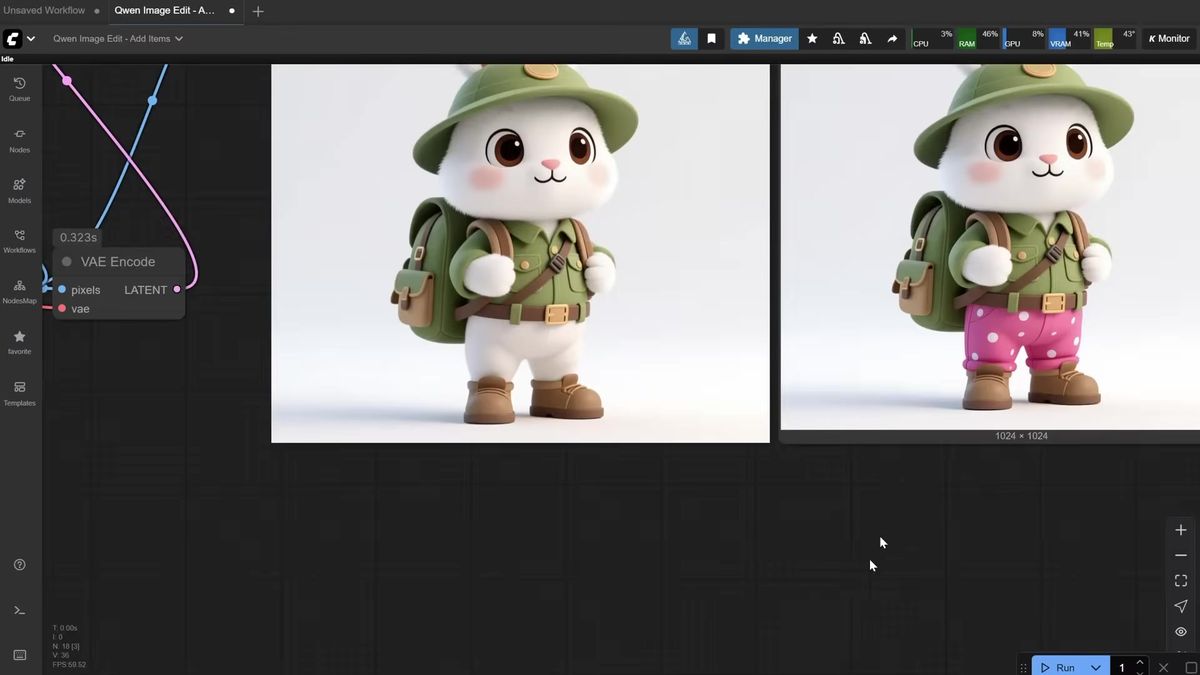
These are all the base workflow with a different prompt:
- Add or remove items. "Add pink pants with dots" or "remove the hat." Removal can over-reach on a bad seed, so rerun with a new seed when it strips more than you asked.
- Change aspect ratio with "keep all the same." Set a landscape or portrait latent and Qwen outpaints the missing edges cleanly. A neat trick: paste the output back into Load Image and prompt "zoom out" or "close up to the face" to recompose.
- Replace background or subject. "Replace the background with a cozy home" relights to match. "Replace the bunny with a panda with a red bow" even adapts the shadow.
- Restore and colorize. "Restore the photo, remove scratches," then "colorize," then "make it look like a modern photo from 2026."
- Logo on product and virtual try-on. Feed a clean logo on white and prompt it onto a mug in gold. Stitch a model, a t-shirt, a skirt, and a bag, then prompt the full outfit. Qwen holds the logo and garment patterns better than most.
For the prompt patterns behind these edits, the prompt-based image editing API endpoint takes the same instruction-style prompts without the graph.
Calling Qwen-Image-Edit as a production API
Once the workflow works, you can call Qwen-Image-Edit directly over HTTP: POST your prompt and image to the model run endpoint, then poll the run ID for the result.
The shape is the same for every model on the platform. Here is a Qwen edit run:
# Submit a Qwen image edit run
curl -X POST https://api.runflow.io/v1/models/qwen/qwen-image-edit/runs \
  -H "Authorization: Bearer rf_live_your_key" \
  -H "Content-Type: application/json" \
  -d '{
    "input": {
      "prompt": "change the hair color to pink, keep the face and pose identical",
      "image_url": "https://yourapp.com/uploads/portrait.jpg"
    }
  }'

# Response returns a run id, e.g. { "id": "run_abc123", "status": "queued" }

# Poll until the run finishes
curl https://api.runflow.io/v1/runs/run_abc123 \
  -H "Authorization: Bearer rf_live_your_key"
Switching models is a one-line change. The same code against Flux or nano-banana is just a different slug in the path. Browse the full catalog of 700+ models on the models page to find the exact owner and slug. For the editing-specific side, the nano-banana API guide shows the same pattern with Google's identity-preserving model.
The reason to call the API instead of self-hosting: no GPU to provision, no VRAM ceiling to manage, no quant decision, and no weights to keep current. You pay simple fixed per-call pricing and get reliability and GPU availability without an AI team. For most teams that math lands around 70% cheaper than building it in-house.
ComfyUI local vs API: pick the right tool per job
ComfyUI is the right place to design and test a Qwen edit workflow. A hosted API is the right place to run it for real users.
The two are not in competition. ComfyUI gives you the node graph to tune prompts, chain stitches, and dial in inpaint masks. That is design work, and nothing beats it for iteration. But a desktop ComfyUI install runs one graph at a time, depends on your machine being awake, and has no built-in retries or failover.
A live app needs concurrency for many users at once, an endpoint that answers at 3am, and a fallback when one provider has a bad minute. That is the job a production API does. If your graph is more than a single model call, you do not have to rebuild it node by node either. ComfyUI Deploy runs your exported workflow JSON as a hosted endpoint, so the exact graph you tuned in ComfyUI ships to production on a real GPU.
The clean path: prototype the Qwen edit workflow in ComfyUI, prove it works, then move the proven version to an endpoint when traffic shows up.
Frequently asked questions
What is Qwen-Image-Edit?
Qwen-Image-Edit is Alibaba's open image editing model. It edits a photo from a text instruction while holding subject identity, lighting, and detail. It competes with Flux Kontext and tends to follow prompts more closely on complex edits.
Do I need a GPU to run Qwen image edit in ComfyUI?
Yes, locally you do. The diffusion model, clip, and VAE all load into VRAM. On a 24GB card, a Q8 quant is the target. If you do not have a strong GPU, calling Qwen-Image-Edit as an API skips the hardware requirement entirely.
Which Qwen edit quant should I download?
Match the file size to your VRAM. If the model file fits under your card's memory, try it. Q5 and above hold quality well. Below Q5 the output starts to degrade. Q8 on 24GB, Q6 as a fallback.
Why use the Text Encode Qwen Image Edit node instead of a normal text encoder?
It encodes both the text prompt and the input image together, not text alone. That joint encoding is what gives Qwen its strong instruction following on edits, so the loaded image feeds the encode nodes as well as the KSampler.
How do I keep the face identical during an edit?
Use inpainting. Mask only the region you want changed, regenerate that area, and the workflow pastes it back over the untouched original. The face and pose stay pixel-identical as long as the change does not move the subject.
Can Qwen edit combine multiple images?
Yes. Use stitch nodes to merge two images at a time, chaining stitches for three or four inputs. Name each subject in the prompt and set a fixed latent ratio so the output is not ultra-wide.
Is Qwen image edit better than Flux Kontext?
For many edits, especially multi-subject and try-on scenes, Qwen tends to be more consistent and follows prompts more literally. Flux Kontext still has its strengths. Running both through one API lets you test the same prompt against each.
How do I call Qwen-Image-Edit over an API?
POST your prompt and image URL to the model run endpoint, get back a run ID, then poll that ID until the status is finished. The same code works across Qwen, Flux, and nano-banana by changing the model slug in the path.
What does the Qwen edit API cost?
Pricing is simple fixed per-call, billed per image rather than per GPU hour. That makes cost predictable per user. Exact rates per model are on the pricing page.
Can I deploy my whole ComfyUI workflow, not just one model?
Yes. ComfyUI Deploy runs your exported workflow JSON as a hosted endpoint, so multi-step graphs with stitch, inpaint, and LoRA chains ship without being rebuilt as separate API calls.
Where to go next
You have both halves now: the ComfyUI build for designing Qwen edits, and the API for shipping them. The 8-steps-instead-of-20 trick got the workflow fast. The real question is whether your own card is still the thing answering when the thousandth user shows up at 3am. Here is the order that works.
- Update ComfyUI and download the right Qwen-Image-Edit quant, clip, VAE, and speed LoRA for your card.
- Build the base single-image edit workflow from the pixaroma episode and tune your prompt structure.
- Layer in the stitch, inpaint, and aspect-ratio variants for the edits your product needs.
- Test the same prompts through the prompt-based image editing API to compare against the local result.
- When real users show up, move the proven workflow to a Qwen run endpoint and poll for results.
- For multi-step graphs, deploy the whole thing with ComfyUI Deploy.
- Add a fallback model in your error handler so one provider's bad minute does not fail a job.
Start free at runflow.io.
Want custom benchmarks for your workload?
We'll run our evaluation pipeline against your production data, for free.
Talk to Founders