What you can build on Runflow's API: an AI pet portrait generator (Maison Zola)
A behind-the-scenes build of Maison Zola, an AI pet portrait generator on Runflow, showing the building blocks you'd reuse for any AI image generation API project.

I'm building a few businesses in public on top of Runflow's AI image generation API, and this is day one of the first one.
The idea is simple. Take the pieces we already run at Runflow and show that one person can stand up a real AI image product on them. Something with a quality gate, scoring, editing, and a checkout, not a toy demo.
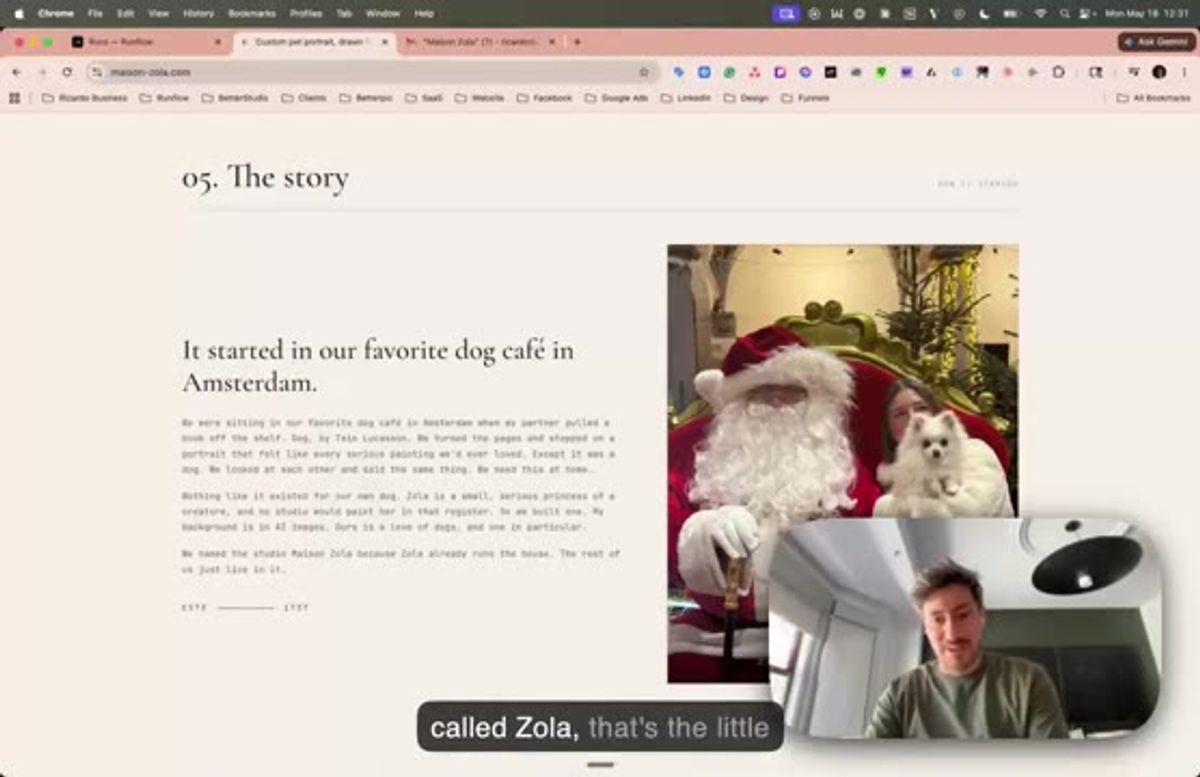
For the first one I picked something close to home. I have a dog called Zola, and I've always wanted a proper portrait of her on the wall. So the first business is Maison Zola, house of Zola, an AI pet portrait generator that turns a phone photo into a royal oil painting you can order as a framed print.
The pet portraits are just the example here. The building blocks underneath are what you'd reuse for almost any AI image product you want to ship.
Why a pet portrait generator
Two reasons. It's a thing I actually want, and the market is real: people spend serious money turning their pets into art.
But mostly it's a clean test case. A pet portrait has a hard quality bar (it has to look like your actual dog), it needs a few generation styles, and it ends in a physical product. That covers most of the hard parts you hit building any image business, so if the pieces hold up here they hold up elsewhere. I did the same thing with headshots last year and stood up a working tool in an afternoon.
It's a working prototype, so a couple of things are still held together with tape. I'll point those out as we go.
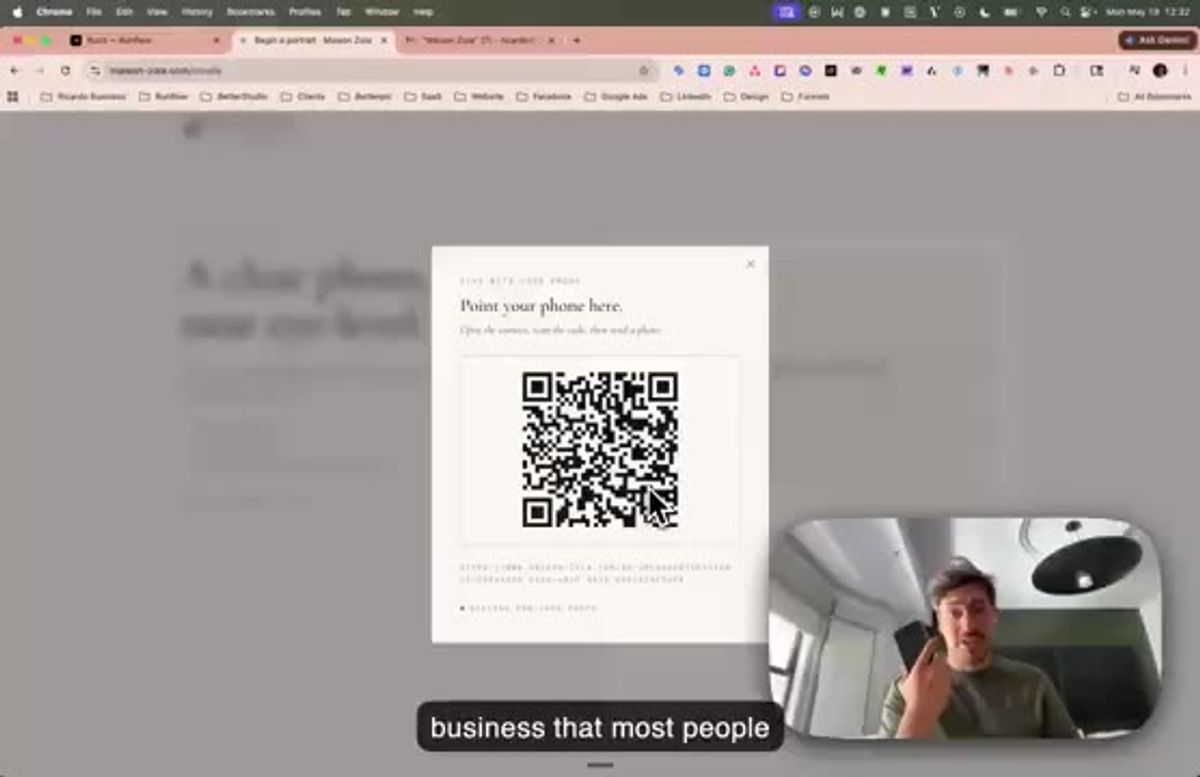
Step 1: let people upload from their phone
The first thing the prototype does is take a photo. You drag and drop from your laptop, or you scan a QR code and send it straight from your phone.
The phone path matters more than it looks. From my first business I learned that most people keep their pet photos on their phone, not their laptop. If the upload makes them go find a file on a desktop, a chunk of them drop off before they ever see a result. So the QR scan is there from day one.
Step 2: describe the pet so the prompt has something to work with
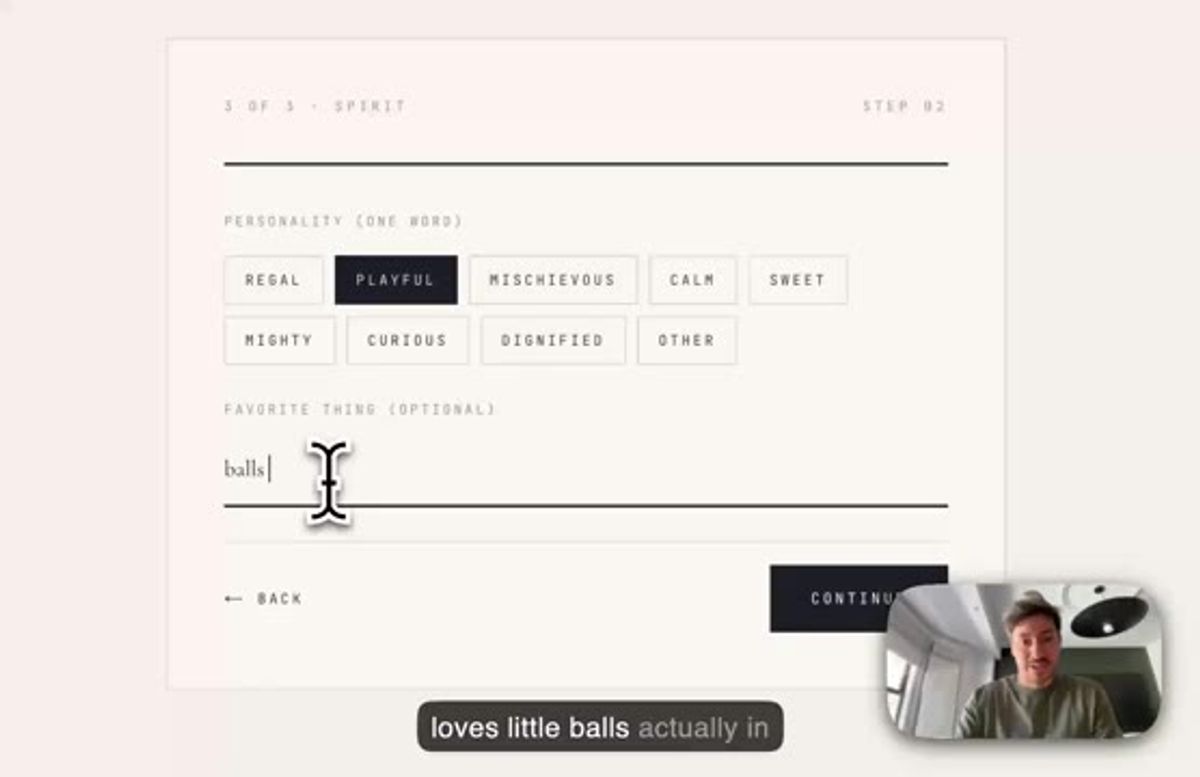
Before anything generates, you tell it about the pet. Name, coat colour, age, and one word for personality. Zola is a white dog, black eyes, still a puppy at two, playful, and obsessed with little balls.
That isn't filler. Each answer gets folded into the prompt so the model has real detail to anchor on instead of guessing. You also pick a style here. I went for the royal treatment, a queen version of Zola, because she earned it.
Step 3: score the input before you spend a cent generating
This is the step most people skip, and it's the one that saves you the most money.
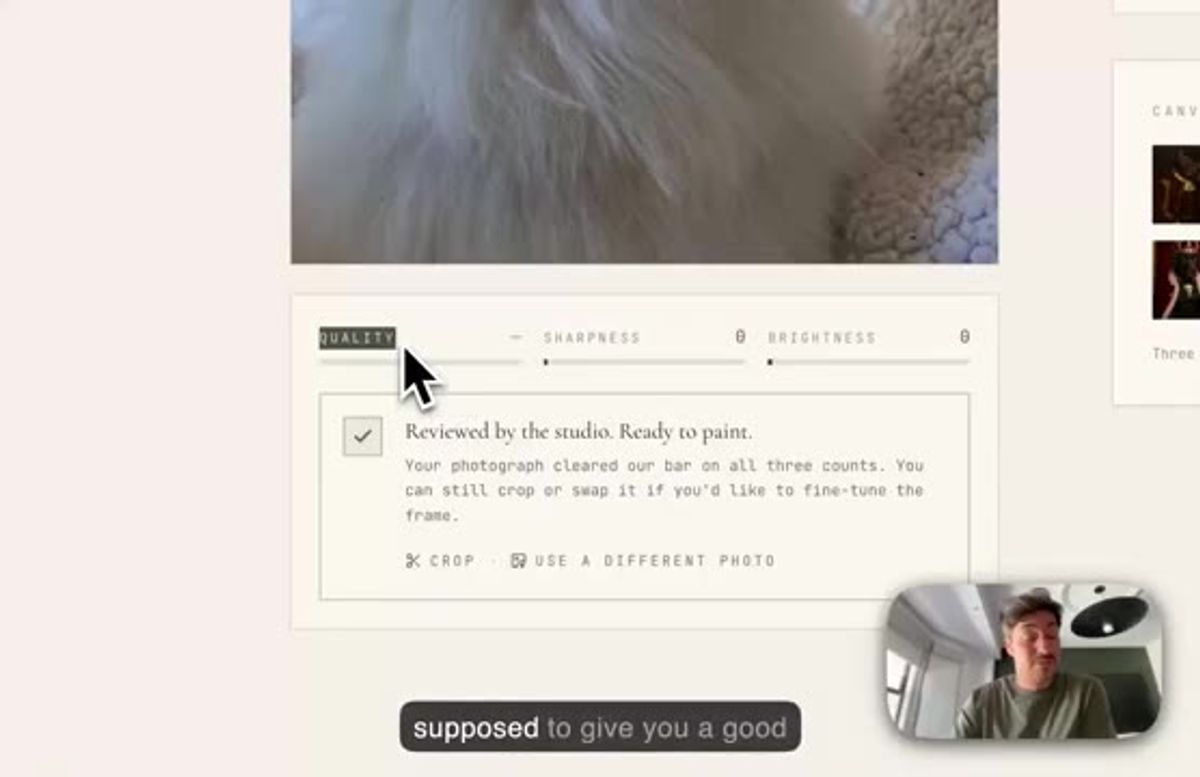
Before any painting starts, the app scores the uploaded photo on sharpness, brightness, and a couple of other things. If it doesn't clear the bar, it won't let you generate. A blurry, dark photo can only ever produce a bad portrait, so generating from it just burns money and makes the user wait for something they'll reject anyway.
At small volume you'd never notice. At scale, a quality gate on the input is the difference between a product that makes money and one that quietly bleeds it. It's the same idea as the scoring layer we built into Runflow itself, which I wrote about in Building Sentinel. (The scorer threw a bug mid-demo, which is what you get for filming a prototype.)
Step 4: generate on Runflow and score the resemblance
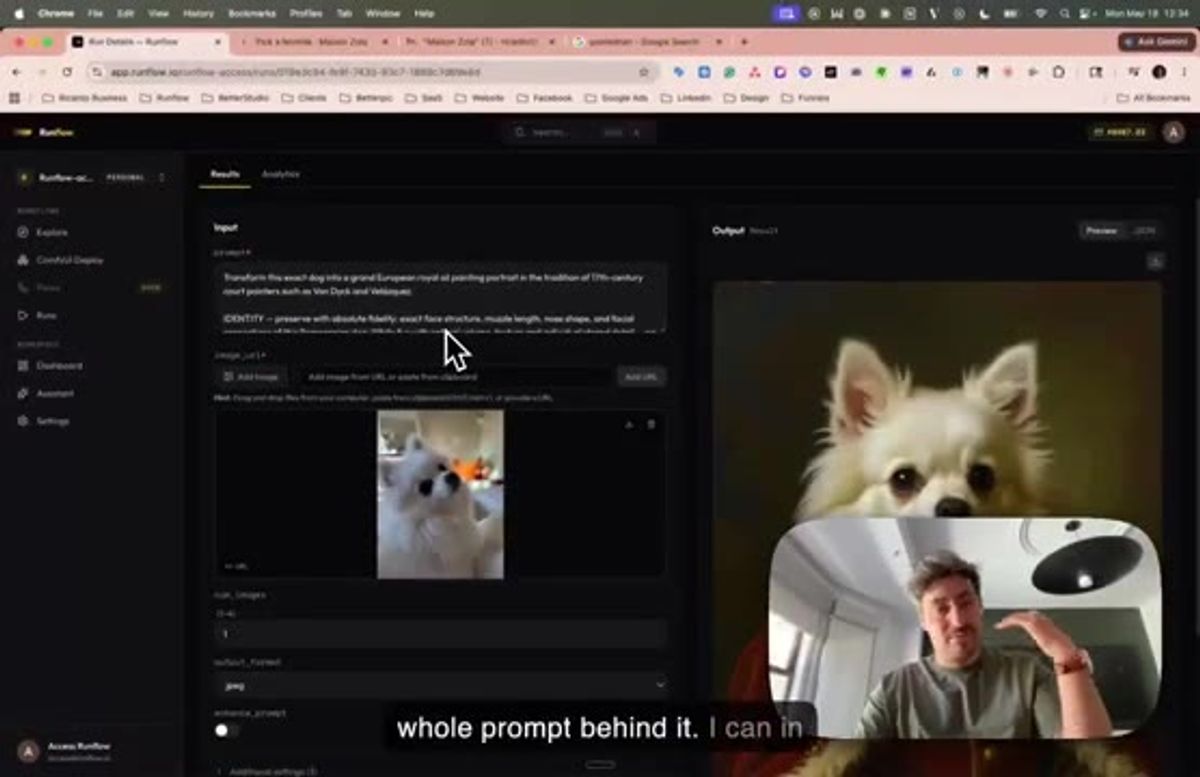
Now the actual generation. Each portrait is a run on Runflow: the input photo, a prompt that pins the dog's exact face structure into a 17th-century court-painter style, and an output image.
The part I care about most is the second score. After a portrait comes back, it gets rated on how much it actually looks like the dog. That lets me only show the user portraits above a resemblance threshold, instead of dumping ten variations and making them sort the good from the uncanny. Picking the right base model matters here too, which is why we keep benchmarking portrait generation.
Right now the scoring takes two to four minutes, which is too slow. That's the next thing on the optimization list. For the demo I just show the images a little slower and score in the background.
Step 5: let users refine in the studio
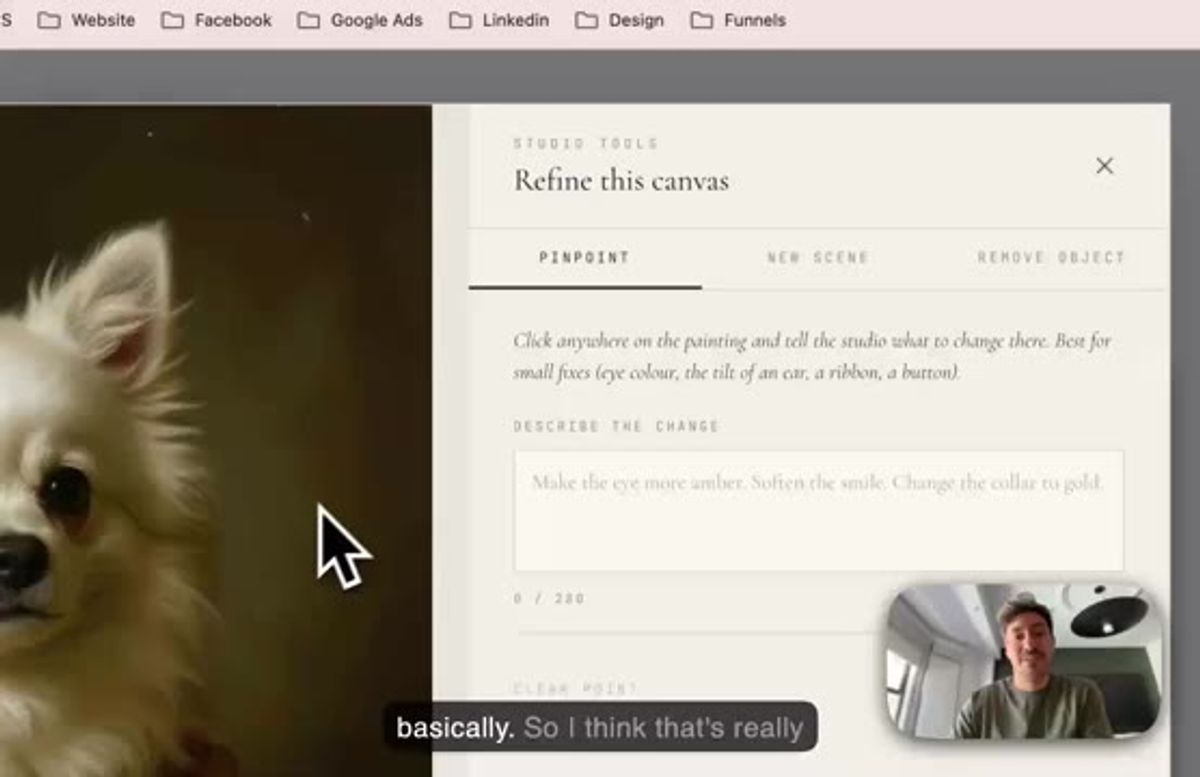
A score gets you most of the way, but people want the last 10% under their own control. So the generated portrait drops into the Runflow studio, where you can make small fixes.
You pinpoint a spot on the painting and describe the change in words: make the eye more amber, soften the smile, change the collar to gold. There's object removal in there too, wired straight into Runflow. It gives the user a way to say "almost perfect, just fix this one thing" before they commit to a print.
Step 6: pick a format and check out
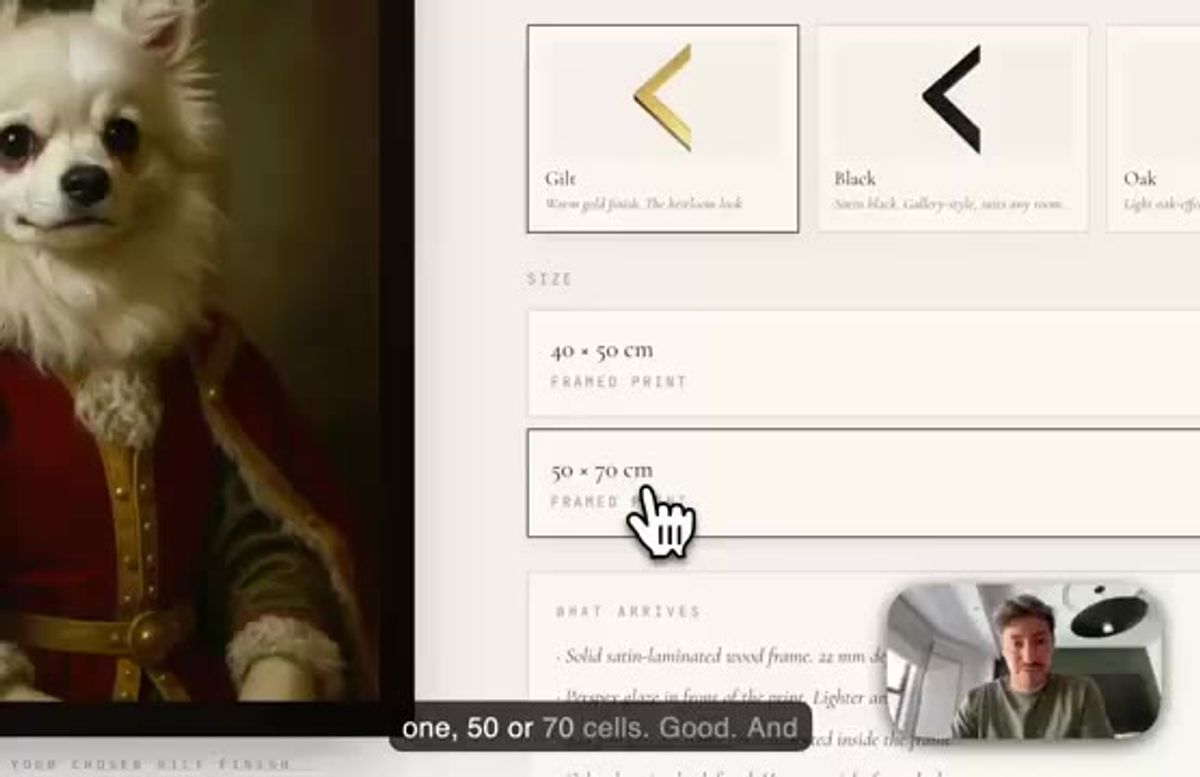
Then it becomes a physical thing. You pick a portrait, a frame (gilt, black, or oak), and a size, then move into checkout with a promo code if you have one. There's also a share card so people can post the portrait before the print arrives, which doubles as free marketing.
The preview card on the share step is broken right now. Another prototype bug, on the list.
Step 7: automate the emails, then upscale to 4K
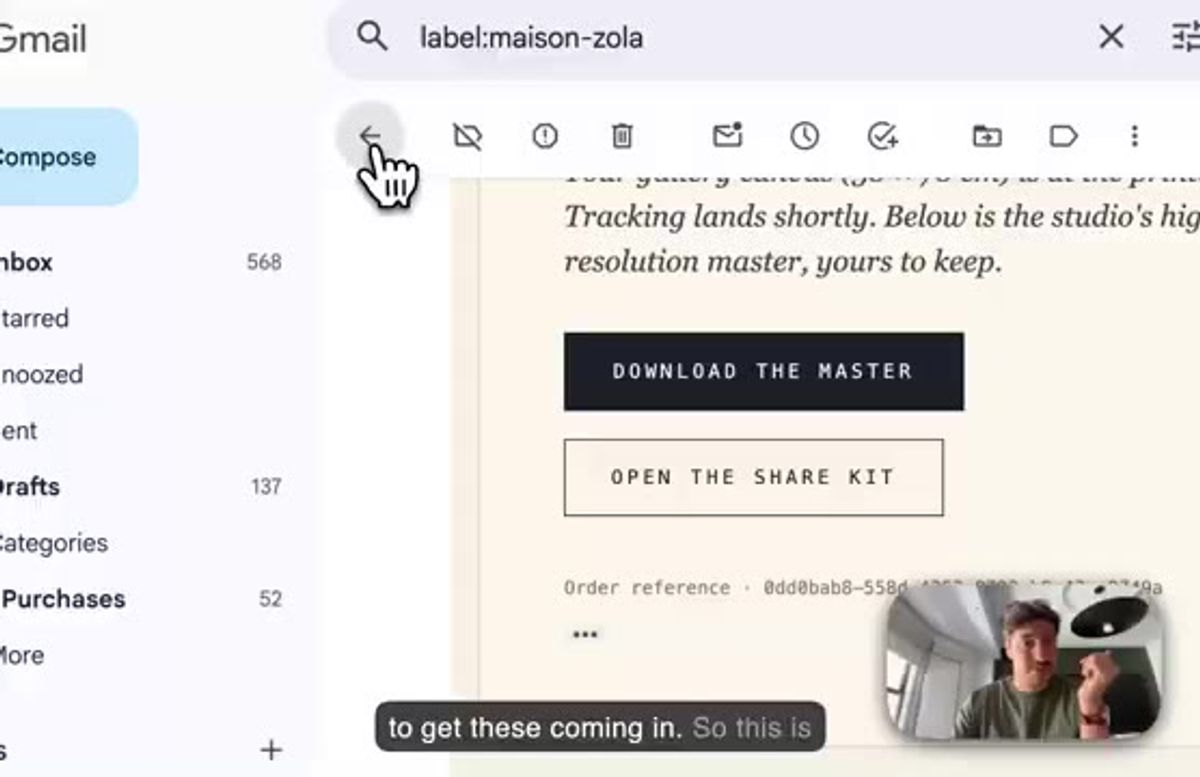
Once an order lands, none of the follow-up is manual. A confirmation email goes out, the saved portraits get emailed, and the order-received note with next steps fires automatically. I'm using Resend to run all of it.
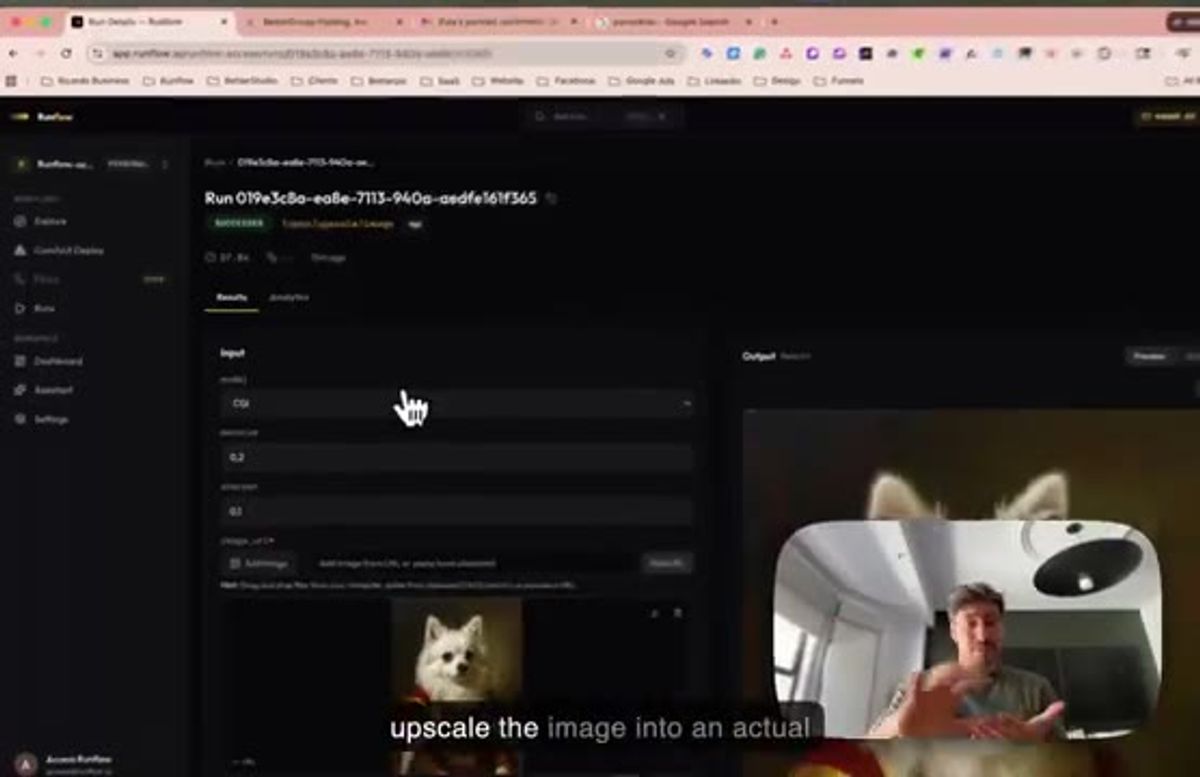
The last step before anything goes to print is an upscale. The chosen portrait runs through an upscaler that takes it to a detailed 4K master, so the print quality holds up at 50 by 70 cm instead of looking soft. Skip that and the file that looked great on screen falls apart on canvas.
That's the whole loop: upload, gate, generate, score, refine, order, fulfil. Every piece runs on Runflow, and plenty of it will break as I push volume through it. When we built our own image studio we hit 14 separate things that broke, and I expect Maison Zola to find a few more. I'll keep sharing them as I grow it.
Want custom benchmarks for your workload?
We'll run our evaluation pipeline against your production data, for free.
Talk to Founders